Hero
How to use the Qala block “Hero”
To add the Qala block, press the plus icon. Then Browse all.
You can either scroll down to the section with Qala blocks, or you can just write the name of the block in the search area. Choose “Hero”.
First, you choose your hero layout. There are six different options for you to choose from, full layout, 50/50 (with three different options) or 33/66 (right or left).
First I will show you the ‘full layout’ option.
Above the block, you will see seven icons. The icon called Align will let you change the width of the block. You can choose between none (narrow), wide or full screen. Whatever works best for your design.
There are also options for text alignment and content alignment, to make sure that the content doesn’t block an important part of the image.
To the right, you will see your settings. If they are hidden, you can press the icon next to Publish. Make sure you have the Block tab open, not Page.
On the hero, you will see a default structure, with a tagline, a title, a description area and a button. You can easily fill out your information here. Each block has its own settings to the right, where you can choose colors, sizes and margins. To add margin to the block, go to Dimensions, choose margin, and drag to desired amount.
If you want to add or delete a block, press the three dots on the upper right corner. You can add before, add after or delete.
To add an image for the hero background, press Replace. You can either select an image from the media library or upload a new image.
In the general settings, you can decide if you want the hero to be a “general hero” or a “hero block post”. Choose your post below.
If you feel that the image is too big, you can decrease the minimum height to desired height. You can choose between viewport height, percentage or pixels.
Here is also an option to upload a different image for mobile.
In the color settings, you can adjust the background color and opacity, and the text color. Work with these options to make sure that the text is legible.
If you chose the 50/50 layout, you can make some changes in the layout settings. For example you can make the columns equal height, or change the width of the content area. Up here, you can decide if you want the image to be on the left or on the right.
Summary
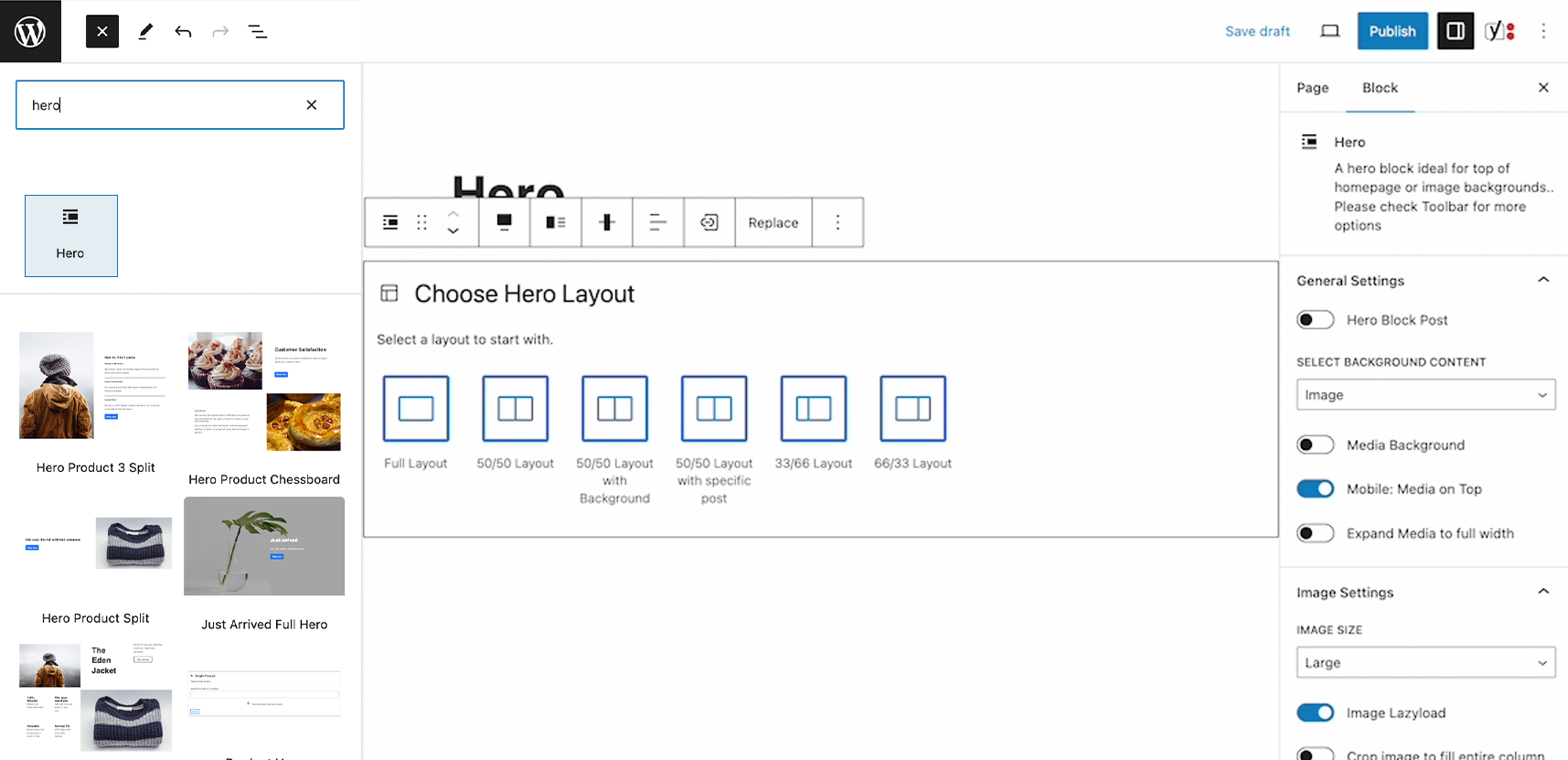
Choose layout
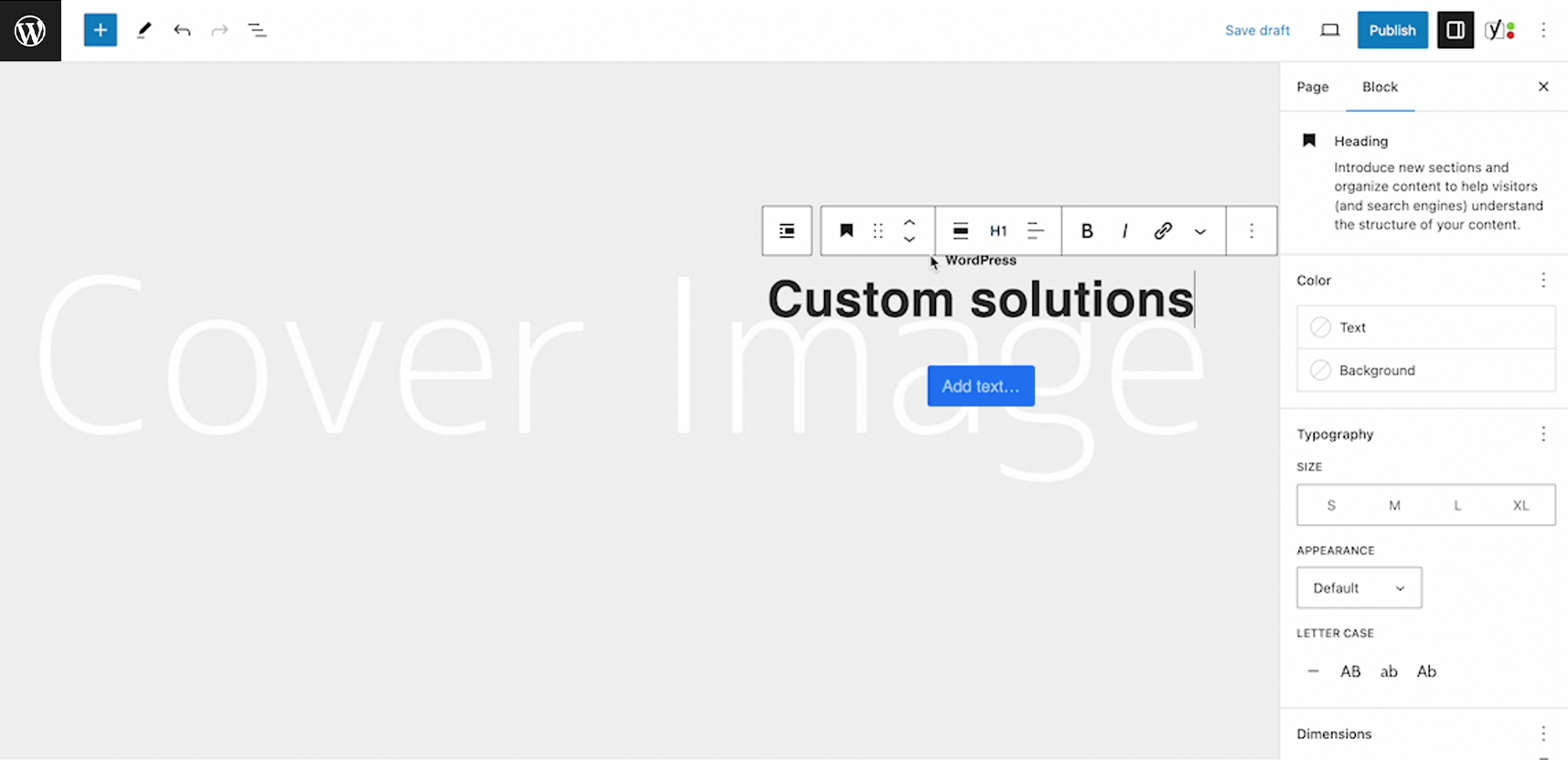
Fill out content
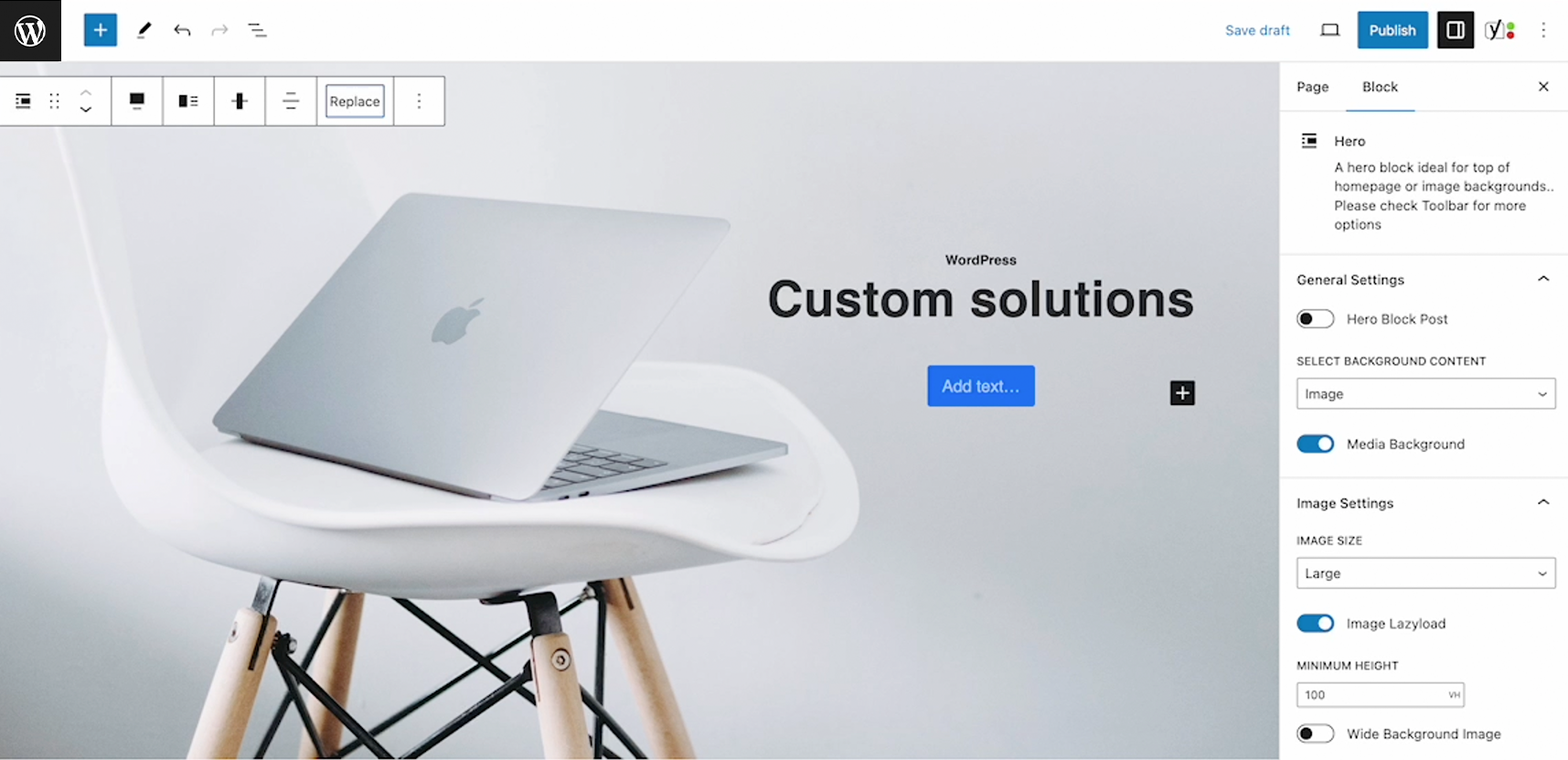
Add background image
Related Qala blocks
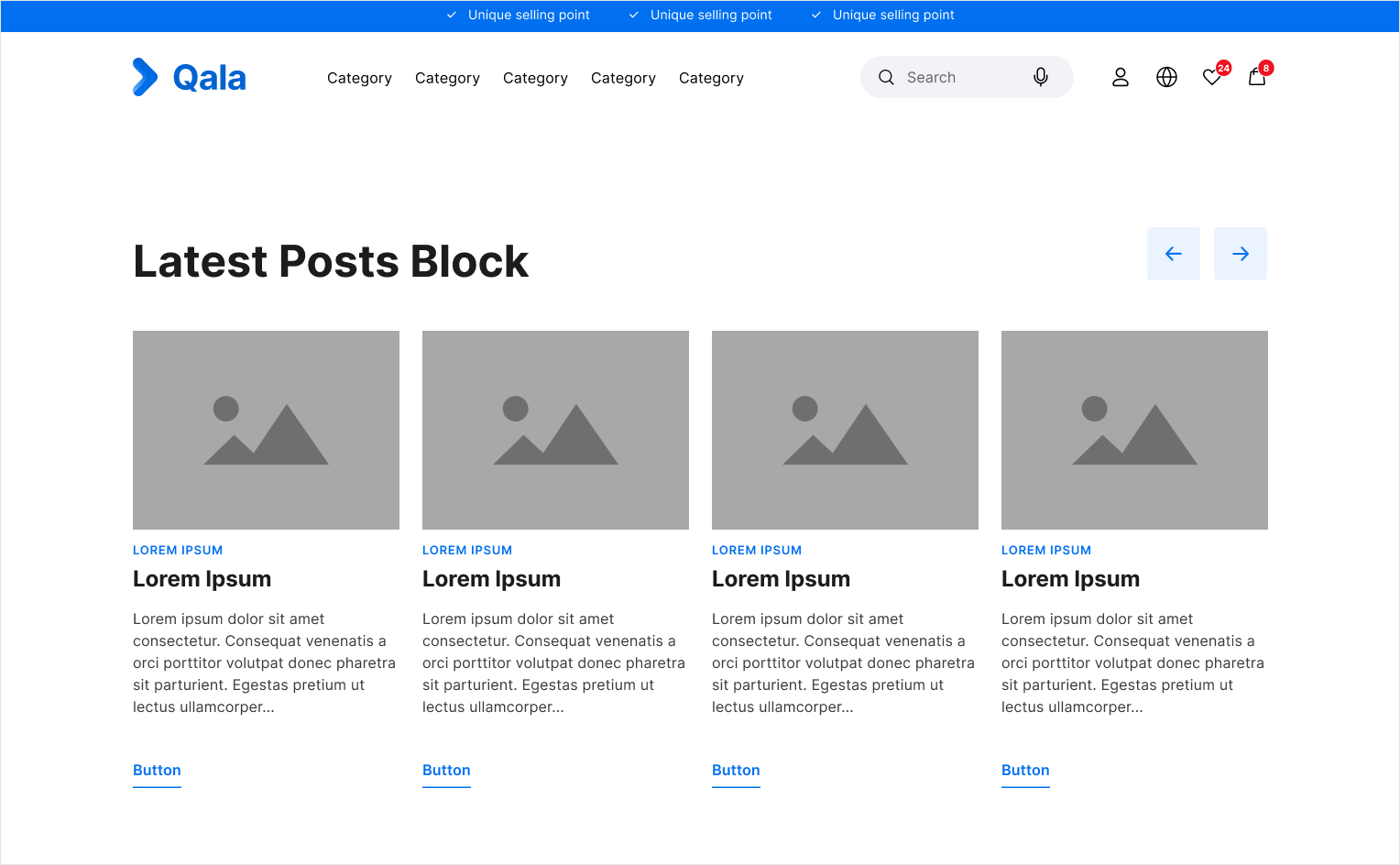
Latest posts
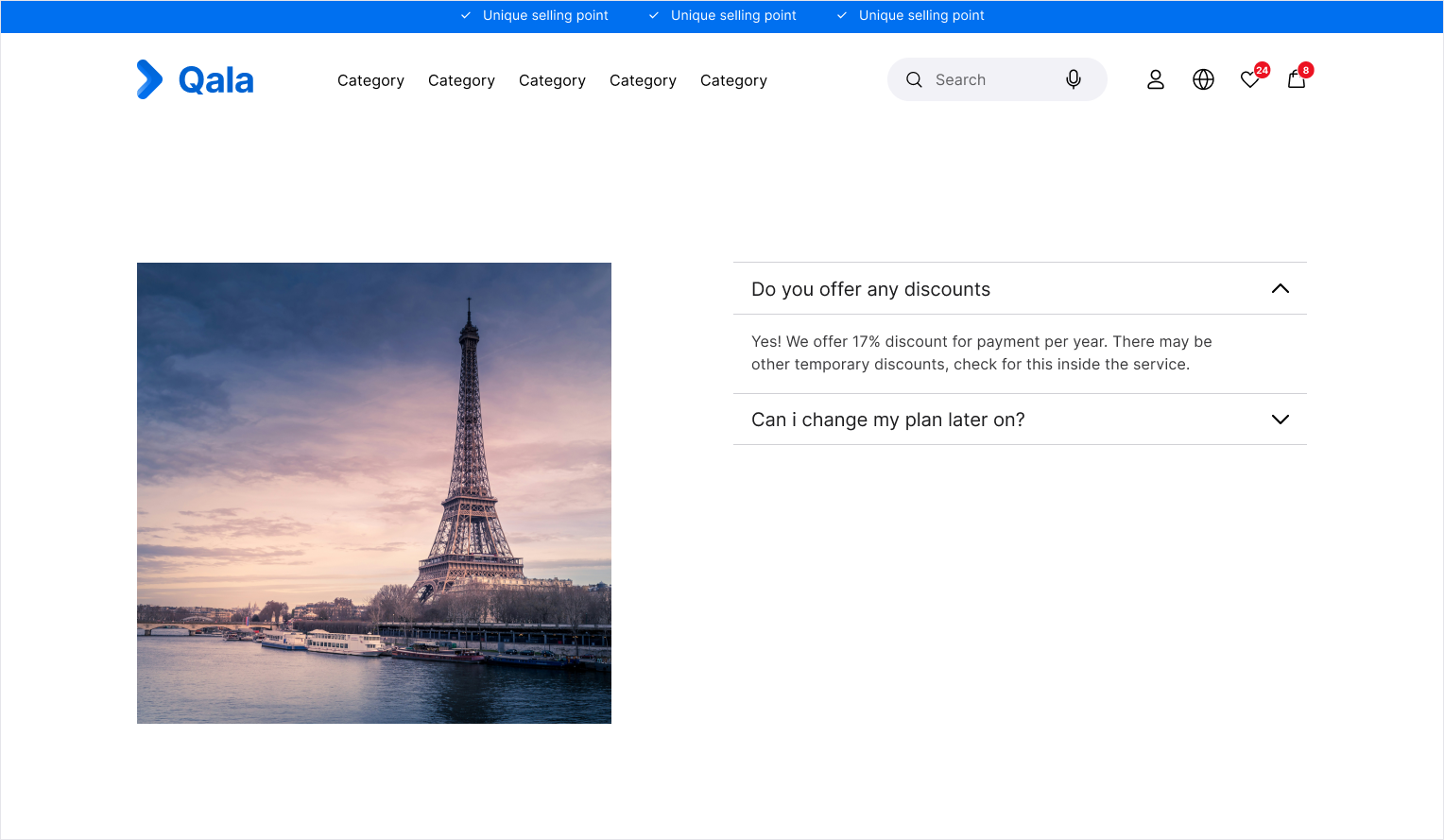
Multi image Accordion
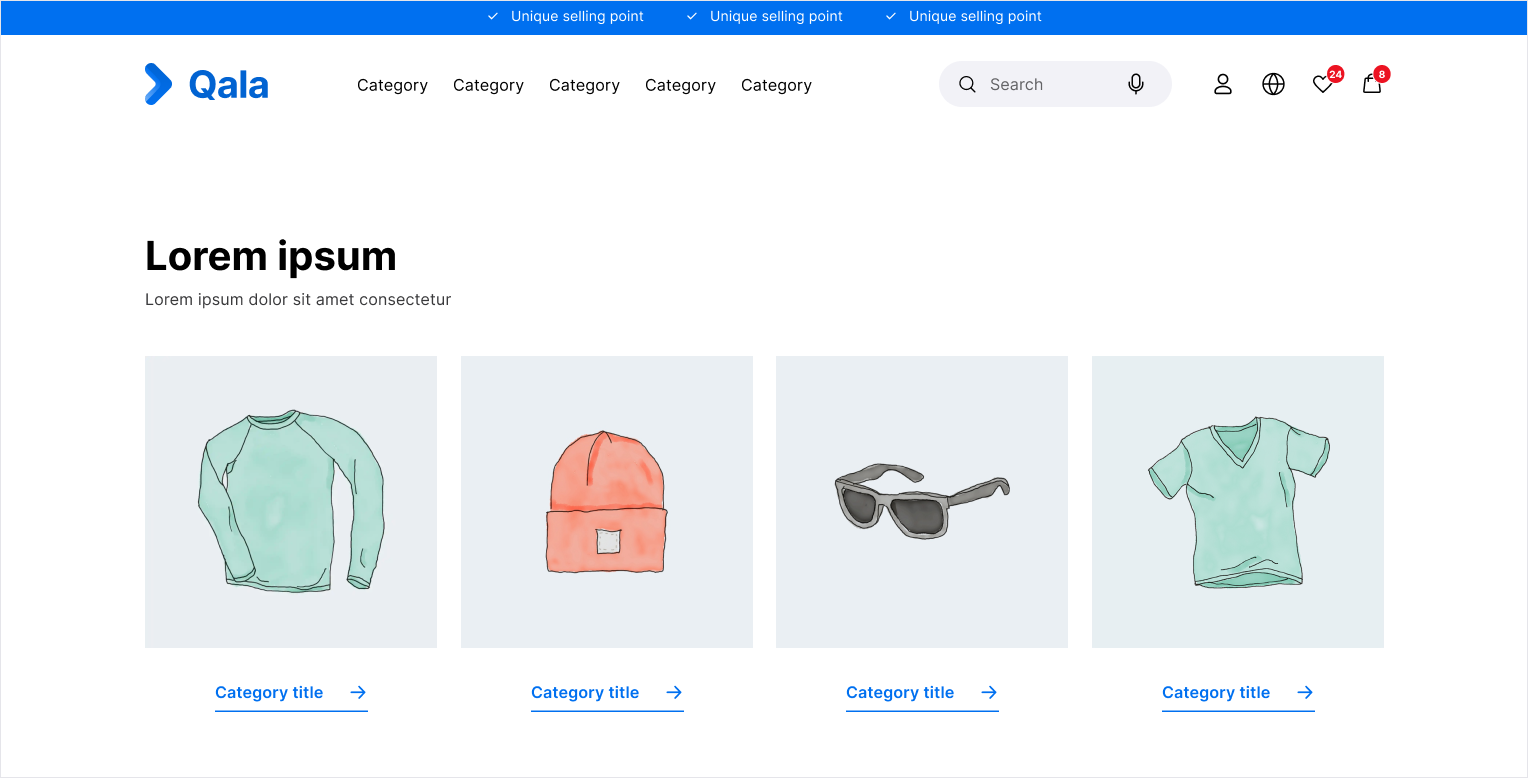
Shop categories