Logo Slider
How to use the Qala block “Logo Slider”
To add the Qala block, press the plus icon. Press Browse all.
You can either scroll down to the section with Qala blocks, or you can just write the name of the block in the search area. Choose “Logo Slider”.
Add logos by clicking on the ‘Add Images’ button. You will now create a gallery of logos for your slider. I would advice you to upload images with the same dimensions for best possible look.
Press on Create a new gallery, and then Insert gallery. If you want to add or remove a logo, just press Edit gallery to do so.
Above the block you will see icons. The icon called Align will let you choose the width of the block. You can choose between none (narrow), wide or full width.
To the right, you will see your settings. If they are hidden, you can press the icon next to Publish. Make sure you have the Block tab open, not Page.
For the logo slider block, you will only have two setting options; to activate autoplay, and to add padding and margins for the whole block.
Summary
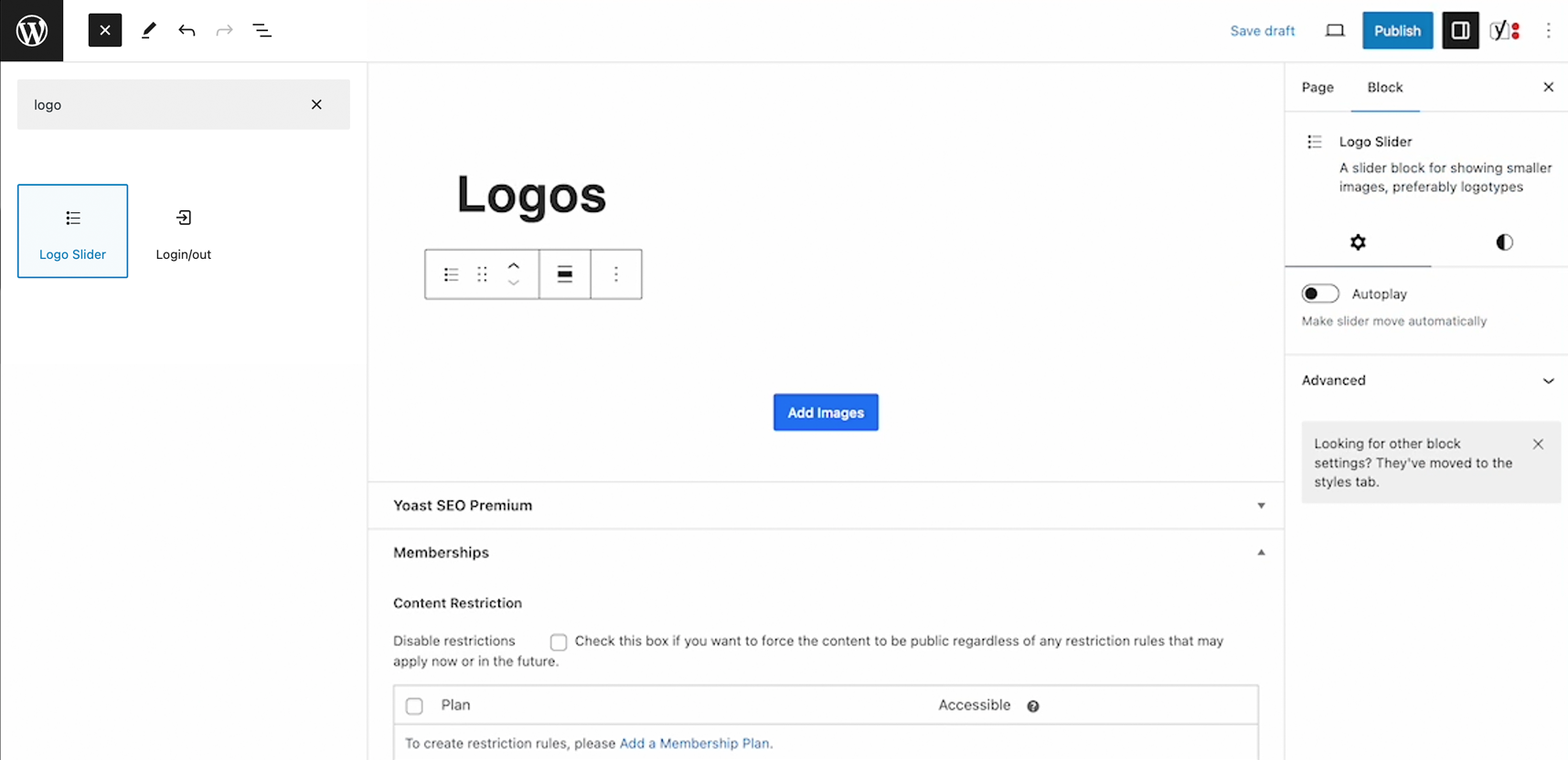
Find the Logo Slider Qala block
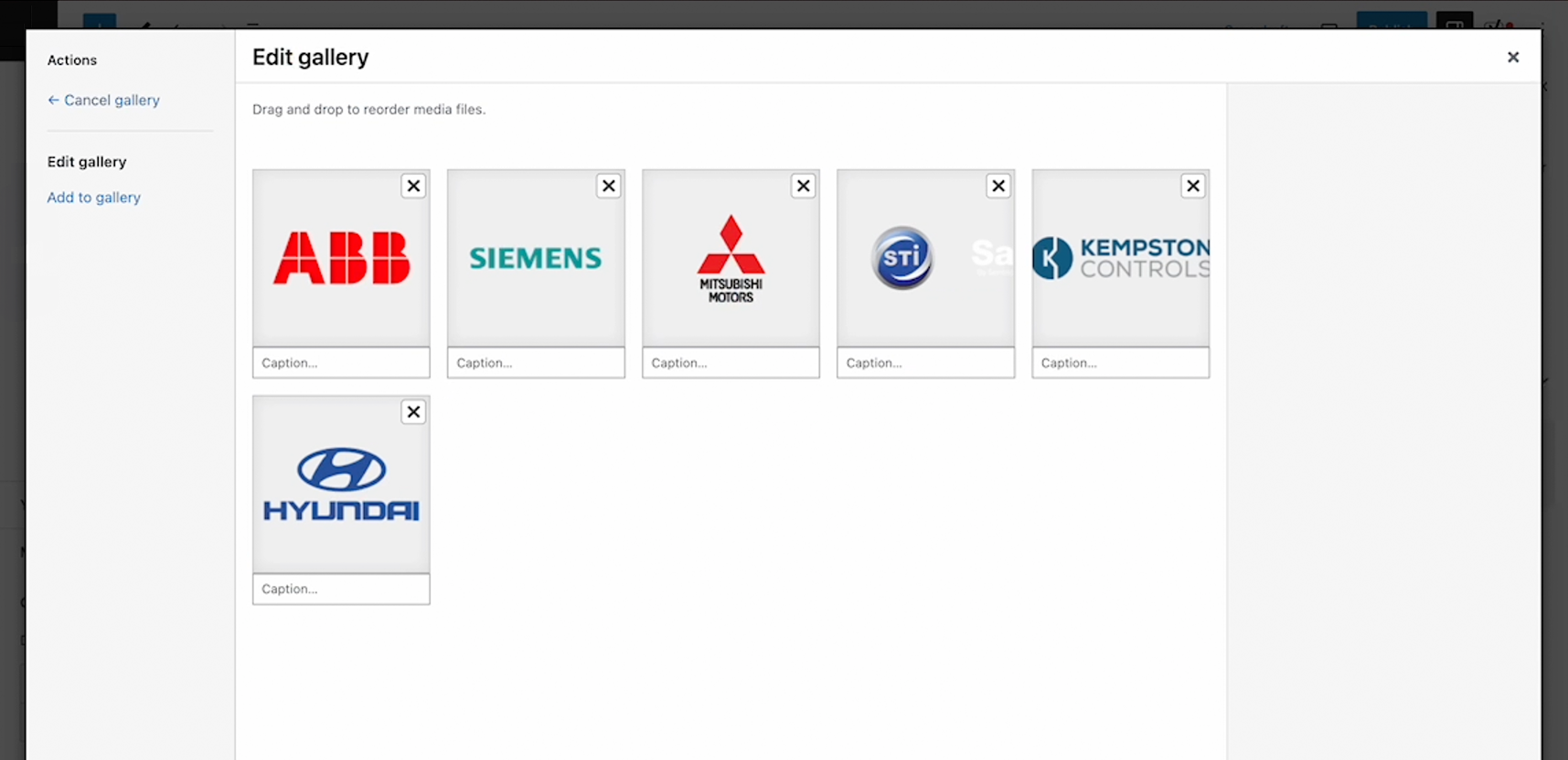
Add images and add to gallery
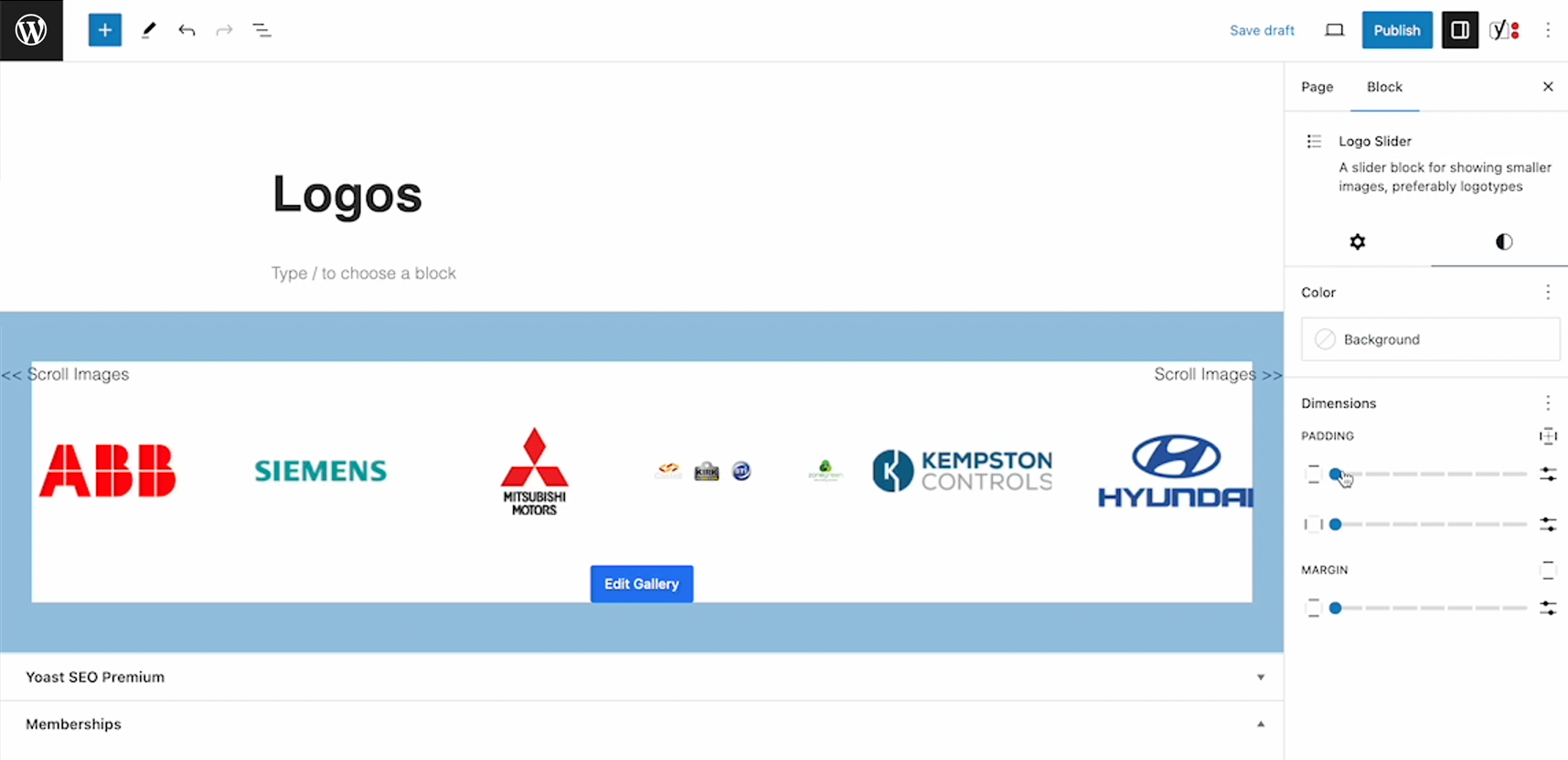
Style the block by adjusting width and margins
Related Qala blocks
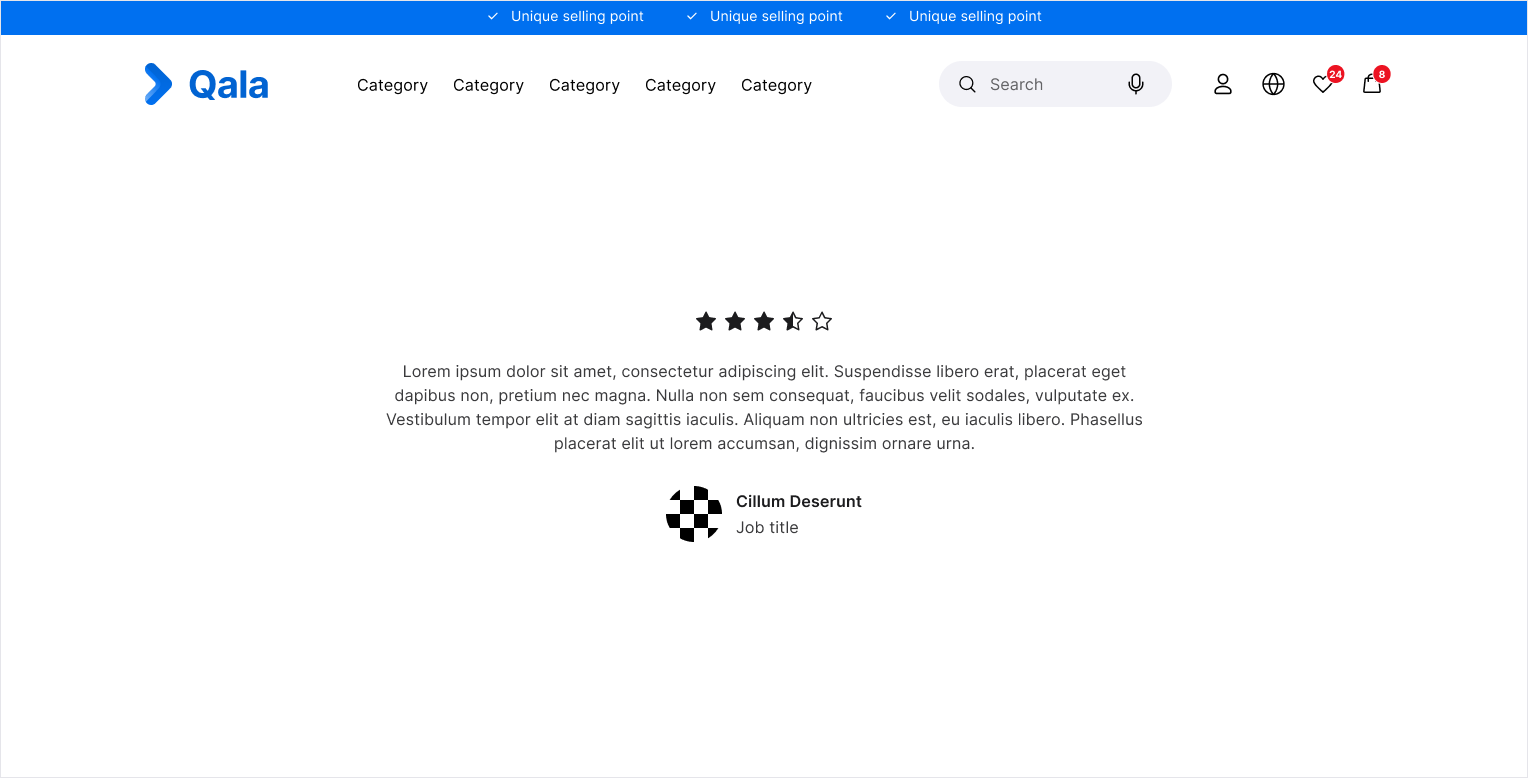
Single testimonial
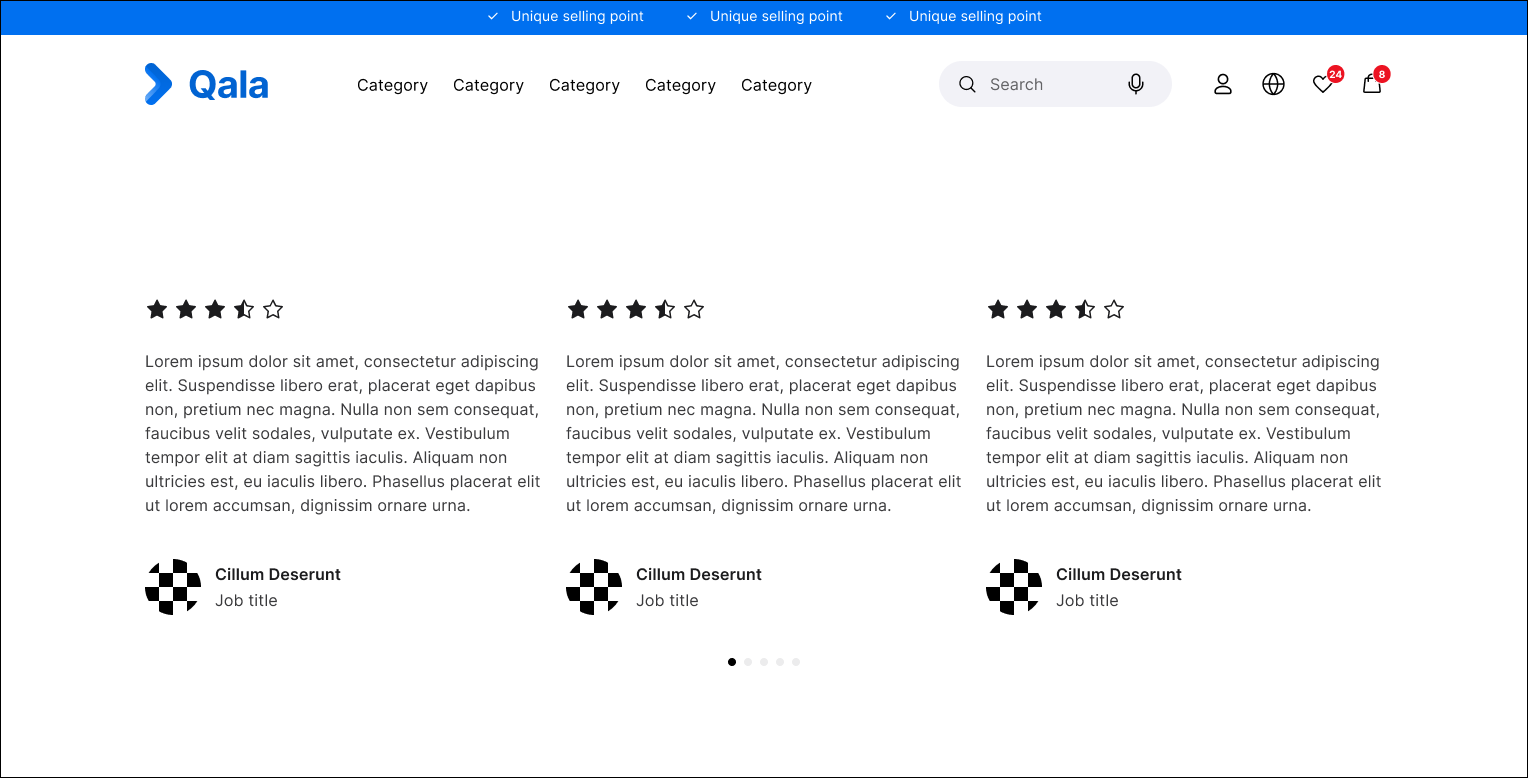
Testimonials

Hero