Testimonials
How to use the Qala block “Testimonials”
To add the Qala block, press the plus icon. Then Browse all.
You can either scroll down to the section with Qala blocks, or you can just write the name of the block in the search area. Choose “Testimonials”.
Press the plus and fill out the first testimonial.
To the right, you will see your settings. If they are hidden, you can press the icon next to Publish. Make sure you have the Block tab open, not Page.
In these settings, you will add the rating, the reviewers name and picture. In the Review Information area, you can add a company name or a date. You can leave this empty if you want.
Decide if you want to align the testimonial to the left, right or center.
Go to your testimonial. If you want, you can style the quote by making it bold, italic, or highlight it with another color. Make sure you select the whole sentence. Here you can add a link as well.
To add a new testimonial, it is easiest to duplicate your existing one and replace the content. Press the three dots, and choose Duplicate. You can also add the block by pressing the plus icon and find it by searching again.
When you have added all your testimonials, go to the left and click on the slanted hamburger menu. Click on Testimonials. Now you can access the settings for the whole block. Decide the number of columns you want for your slider. Here are also settings for autoplay, loop etc.
Summary
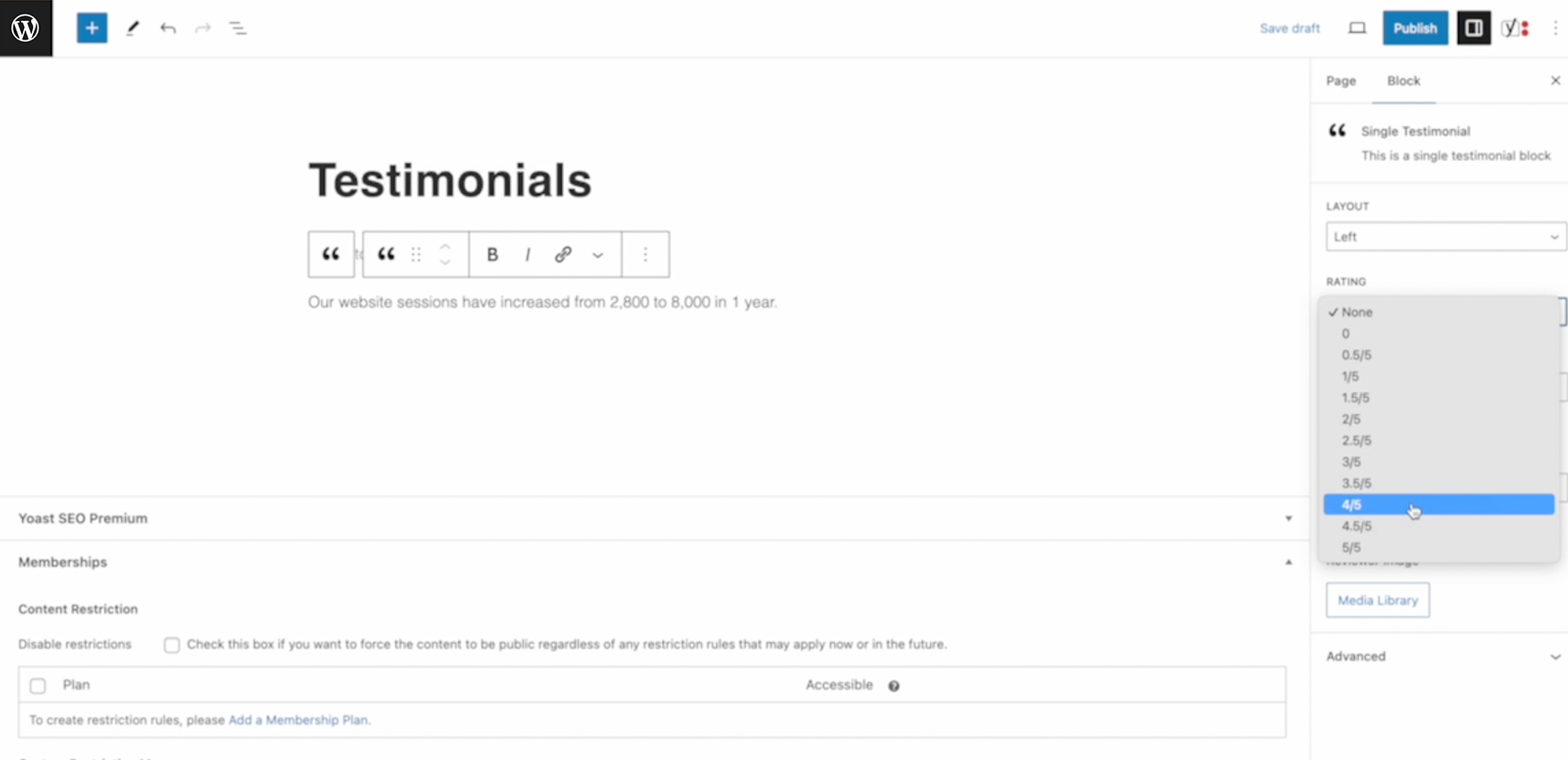
Write the quote
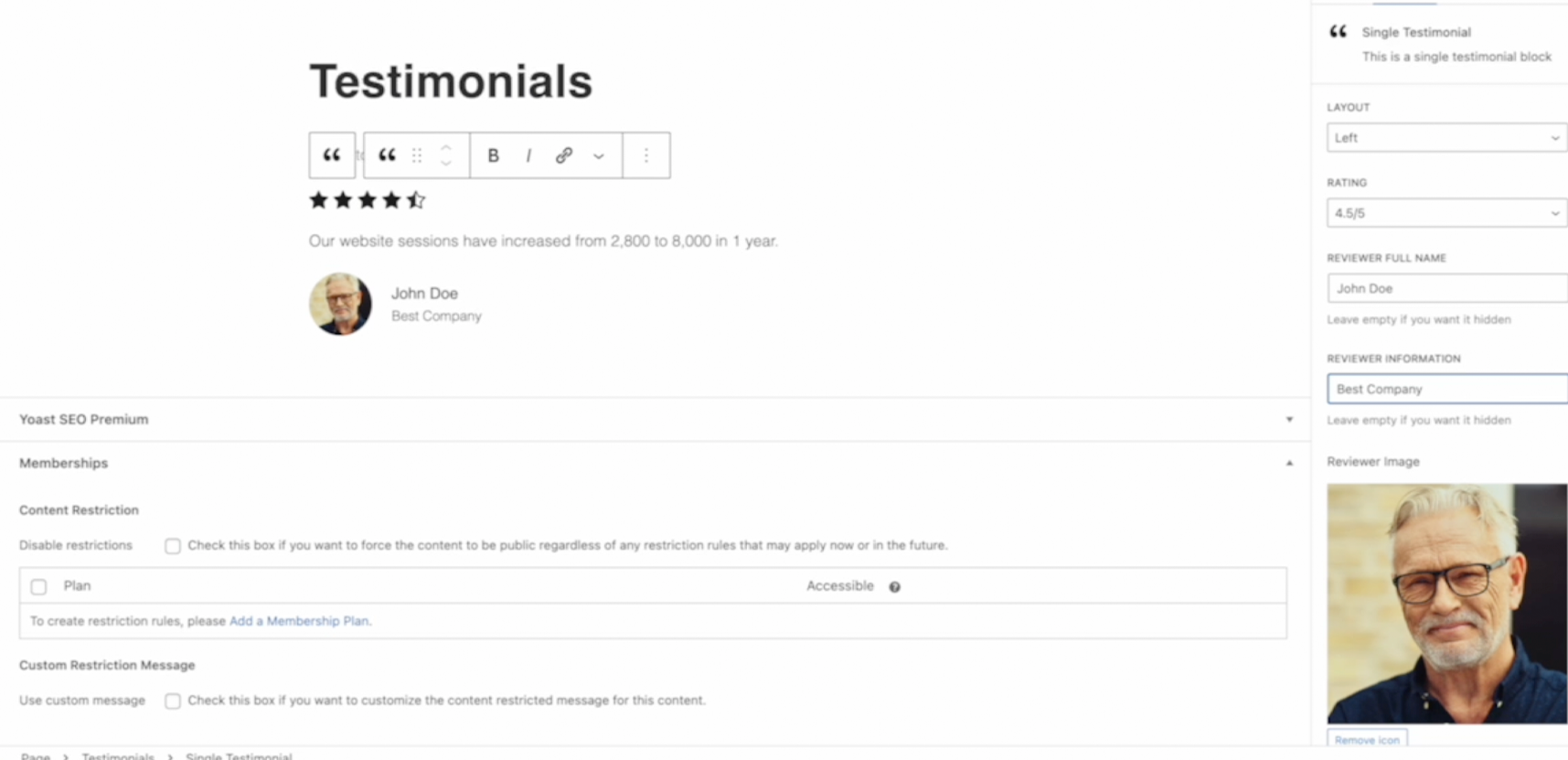
Add rating, name, info and image
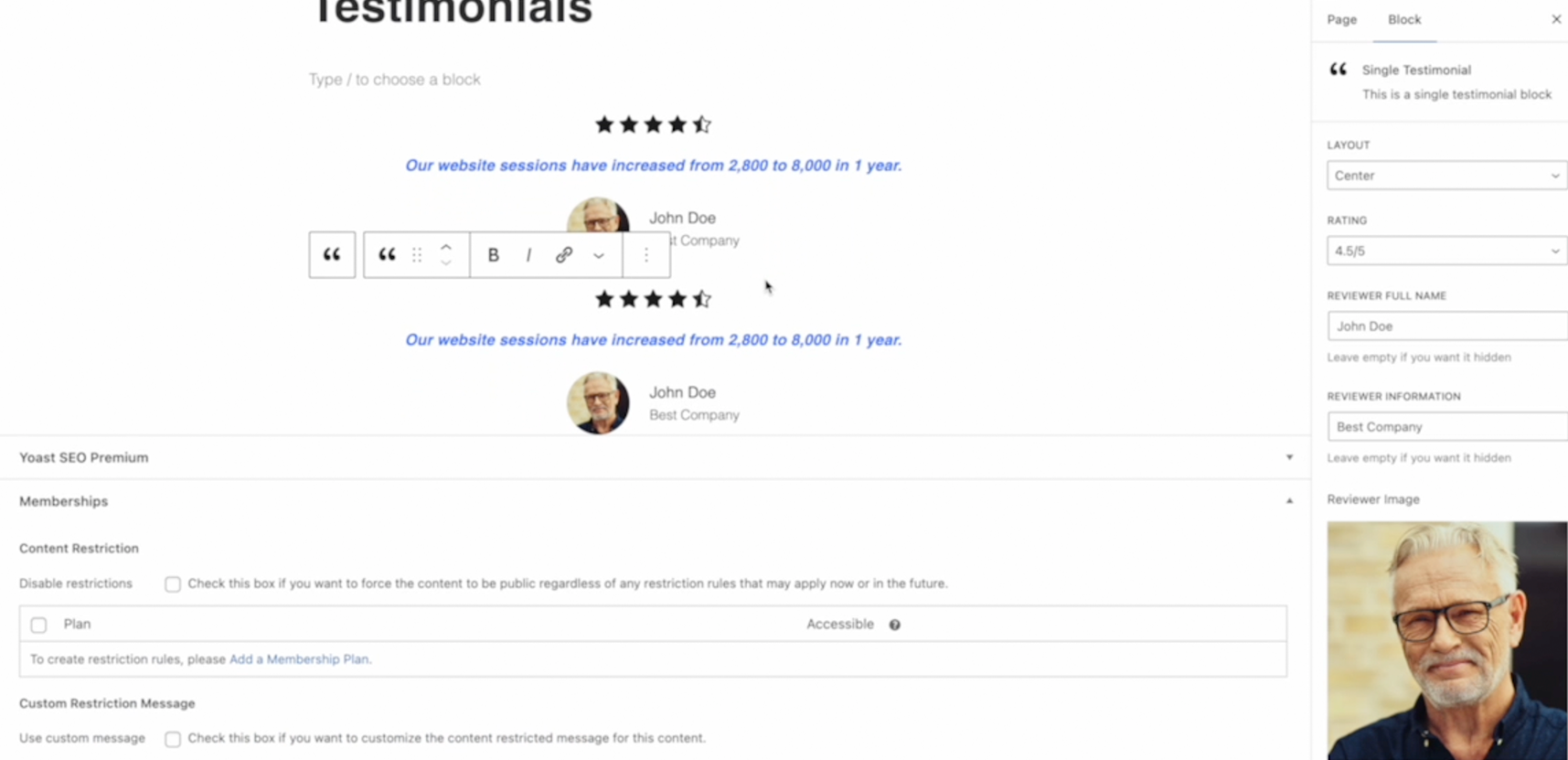
Duplicate and edit content
Related Qala blocks
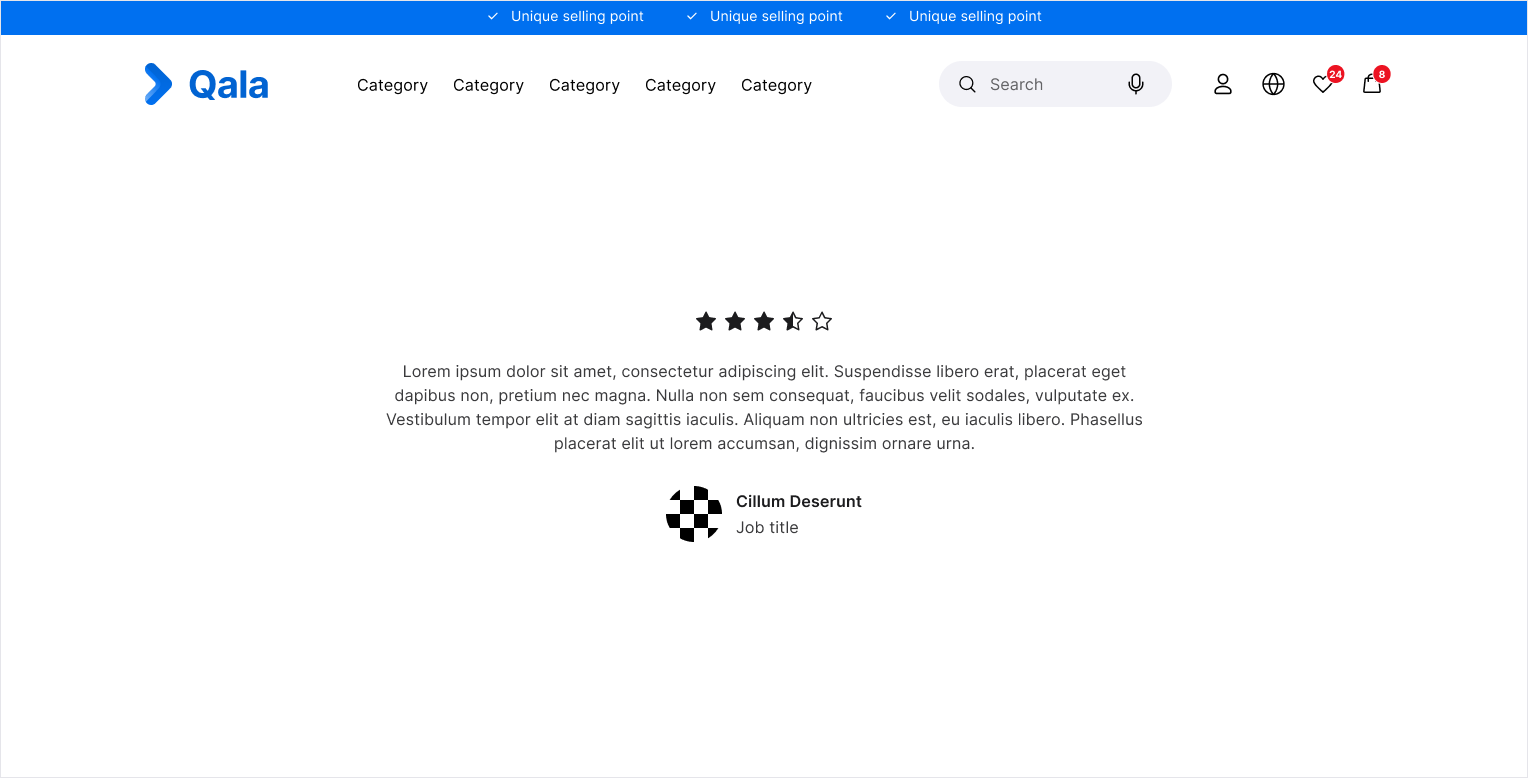
Single testimonial
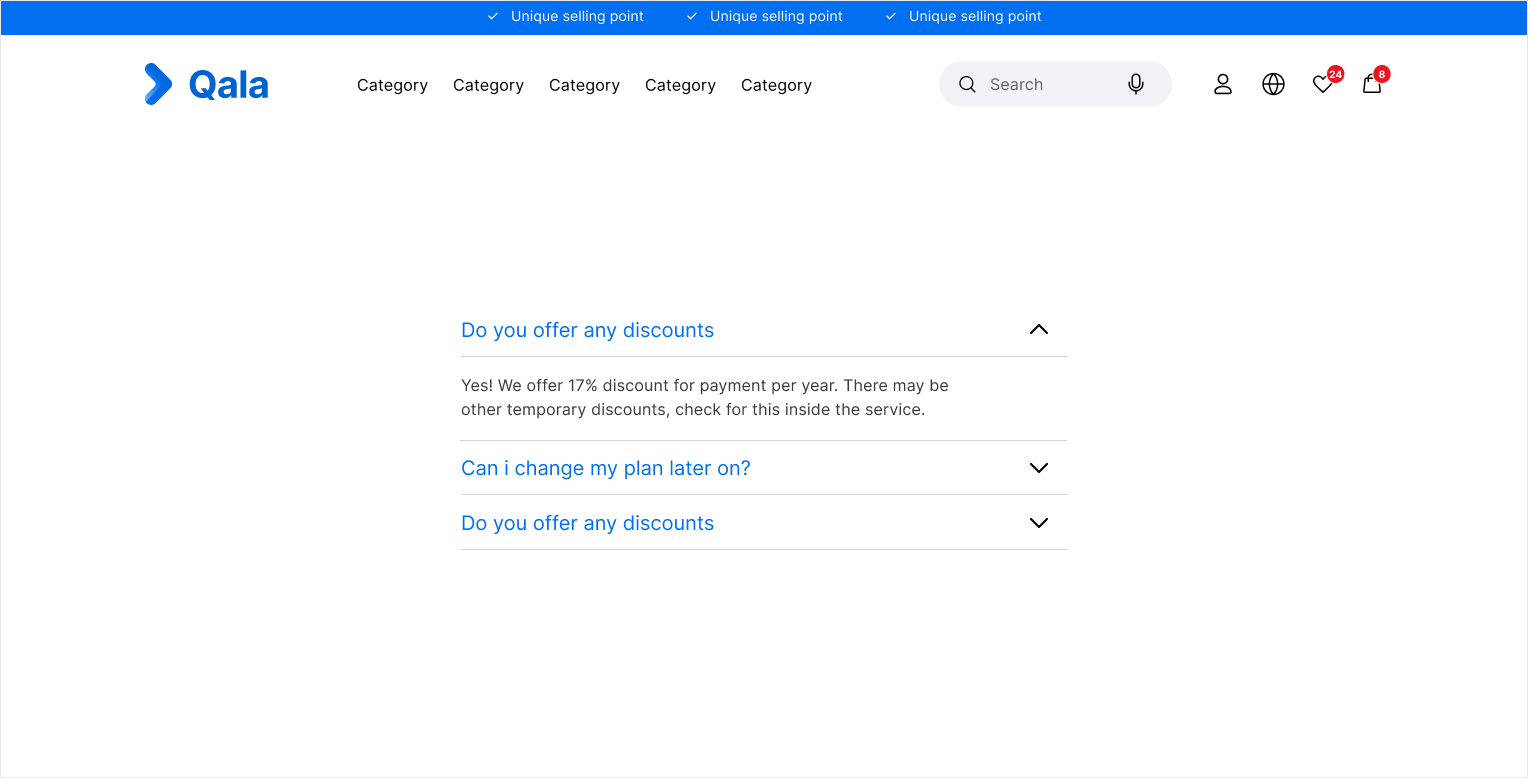
Accordion
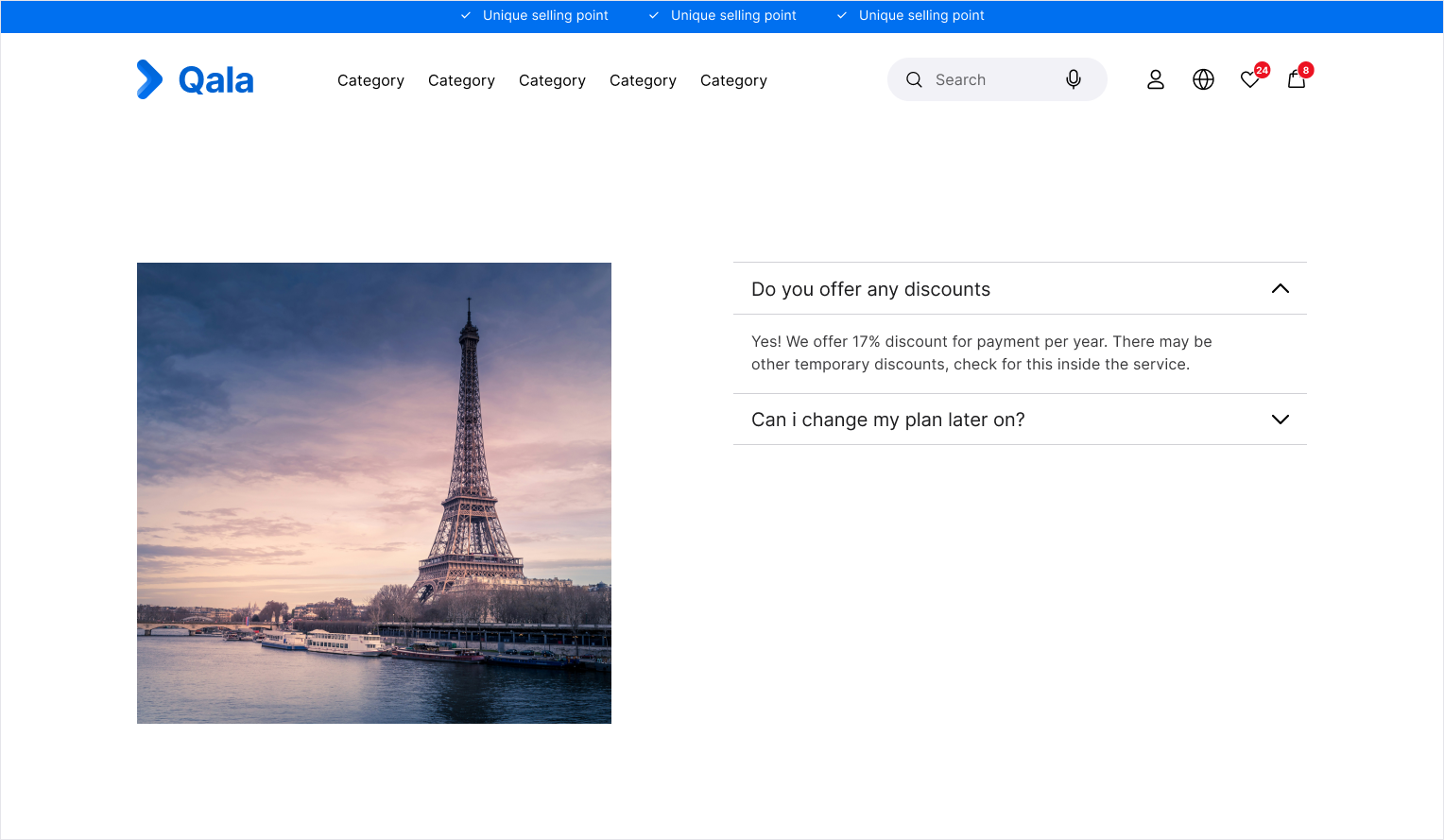
Multi image Accordion