Accordion
How to use the Qala block “Accordion”
To add the Qala block, press the plus icon. Then Browse all.
You can either scroll down to the section with Qala blocks, or you can just write the name of the block in the search area. Choose “Accordion”.
In the top section, write your heading. It may be a title or a question. Underneath, you add your content. This will be all text based.
To add a new accordion, it is easiest to duplicate your existing one and replace the content. Press the three dots, and choose Duplicate. You can also add the block by pressing the plus icon and find it by searching again.
To the right, you will see your settings. If they are hidden, you can press the icon next to Publish. Make sure you have the Block tab open, not Page.
In these settings you have the option to style the text and add an icon. In this case, upload an svg file.
To style all your accordions the same way, go to your left and press the slanted hamburger menu. Select all accordion layers by holding down shift. Then you can style all of them at once. You will have to change the icon to each individual accordion.
On the frond-end, the answers (or the content) will be collapsed by default. When you press the heading, the answer will toggle below.
Summary
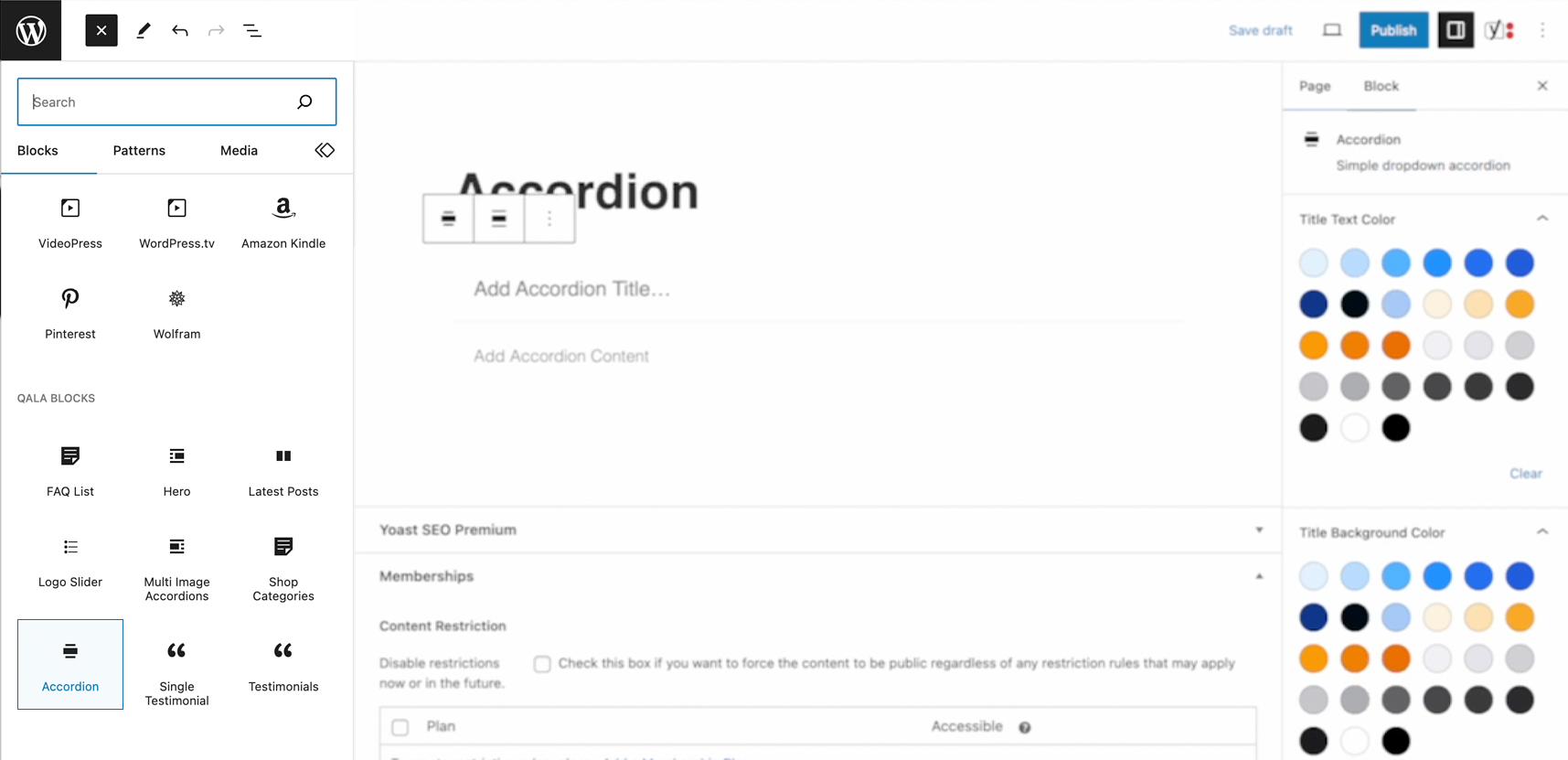
Add the Qala block Accordion
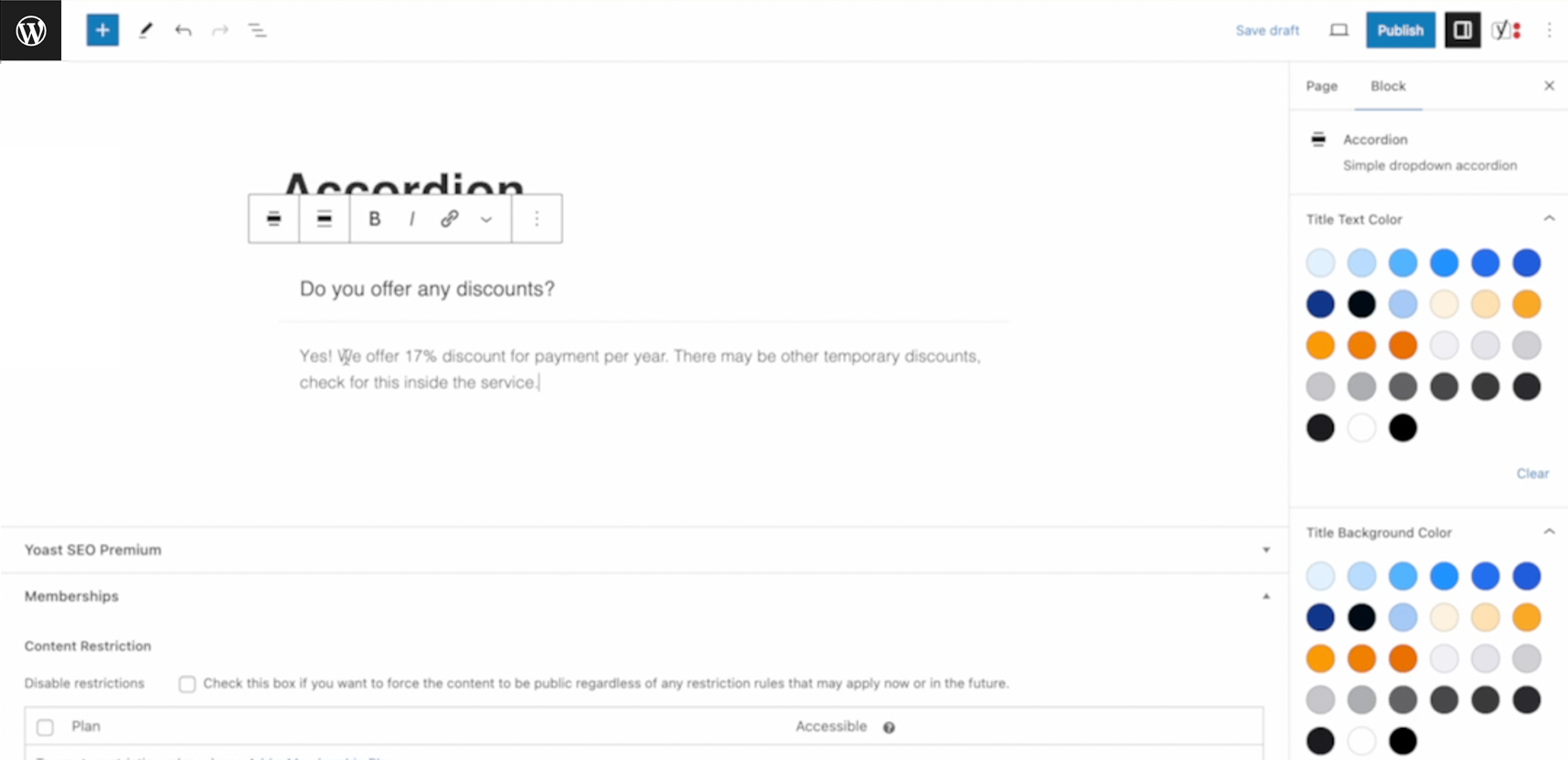
Add title and content for Accordions
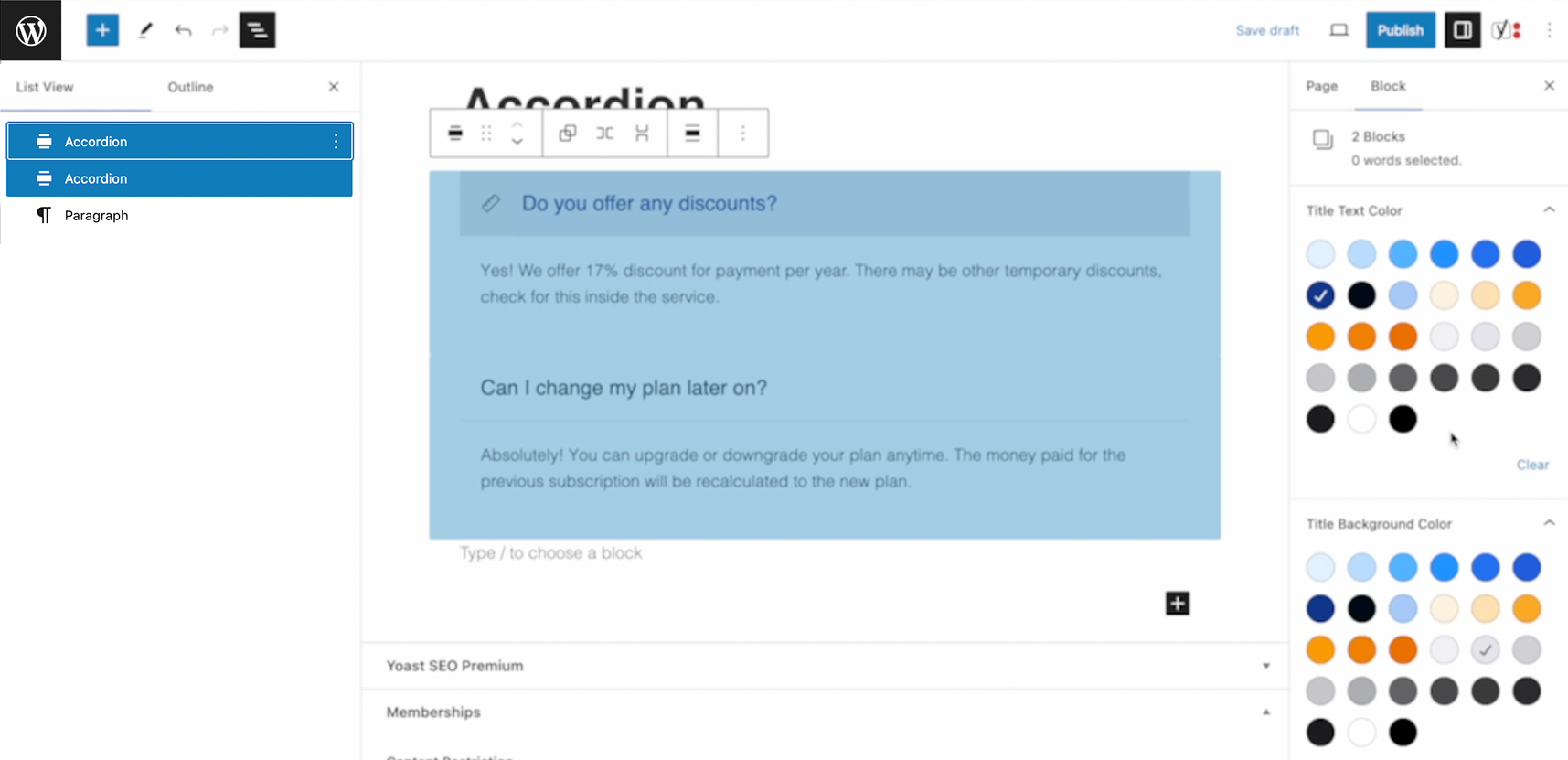
Style your Accordions
Related Qala blocks
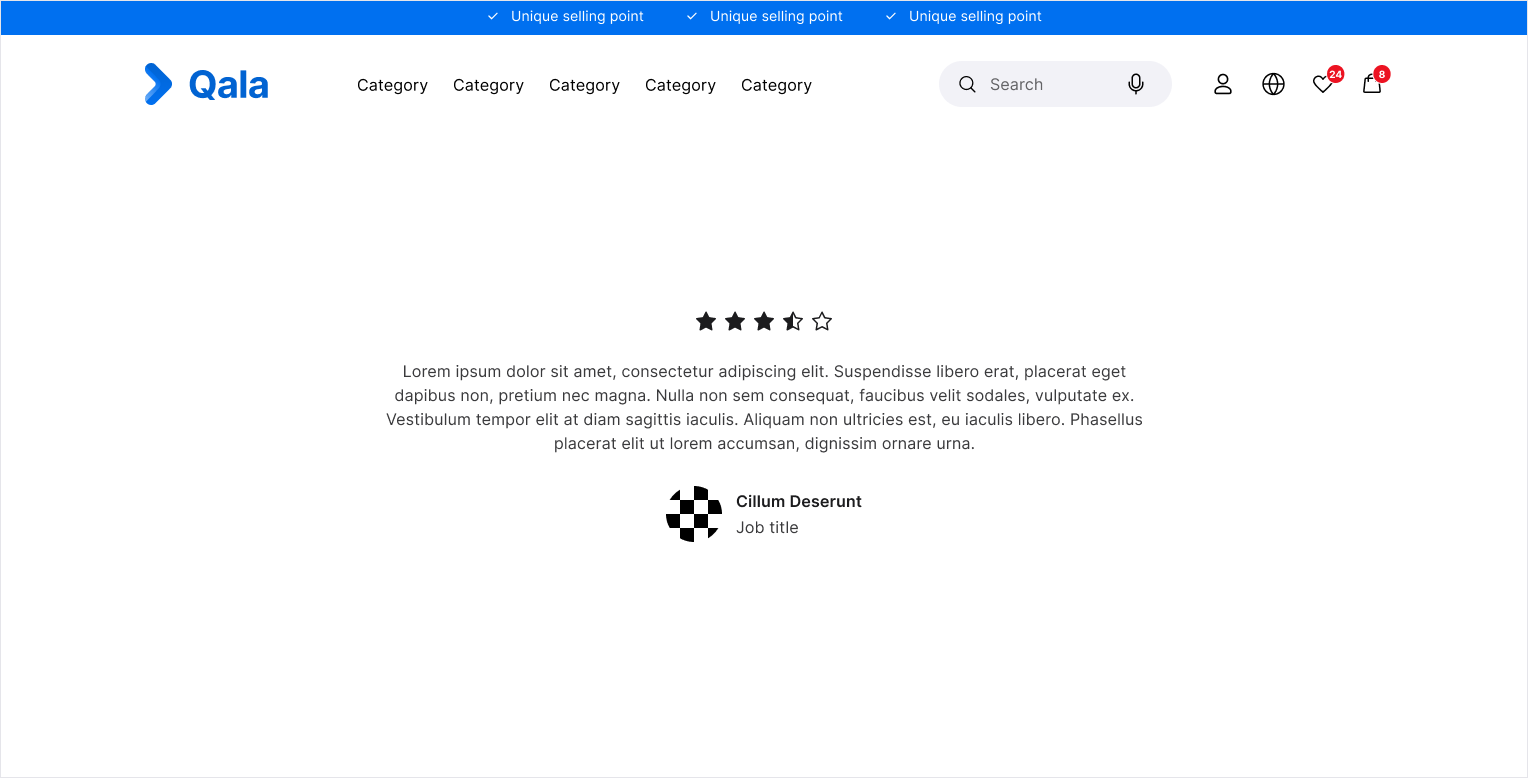
Single testimonial
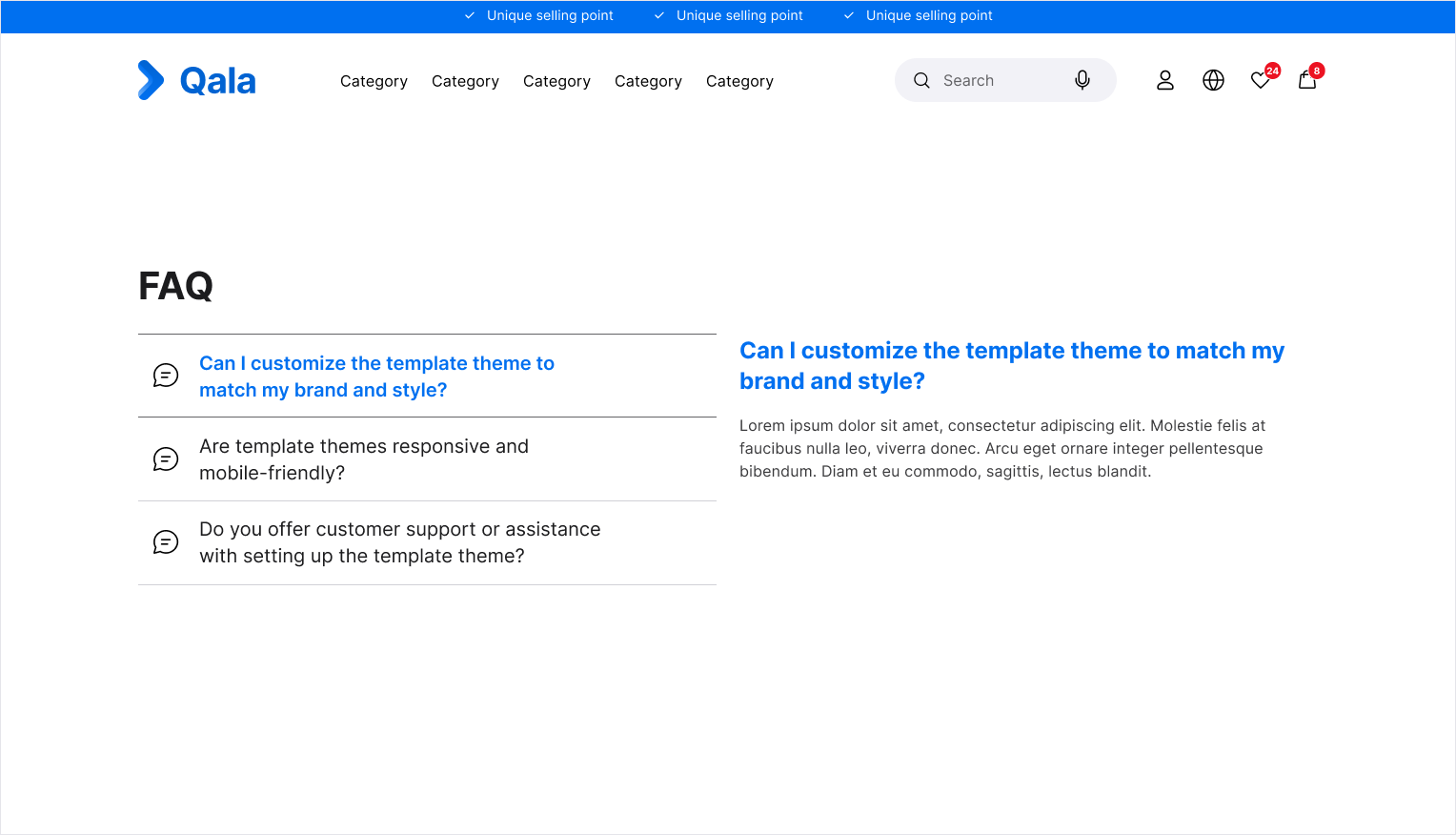
FAQ list
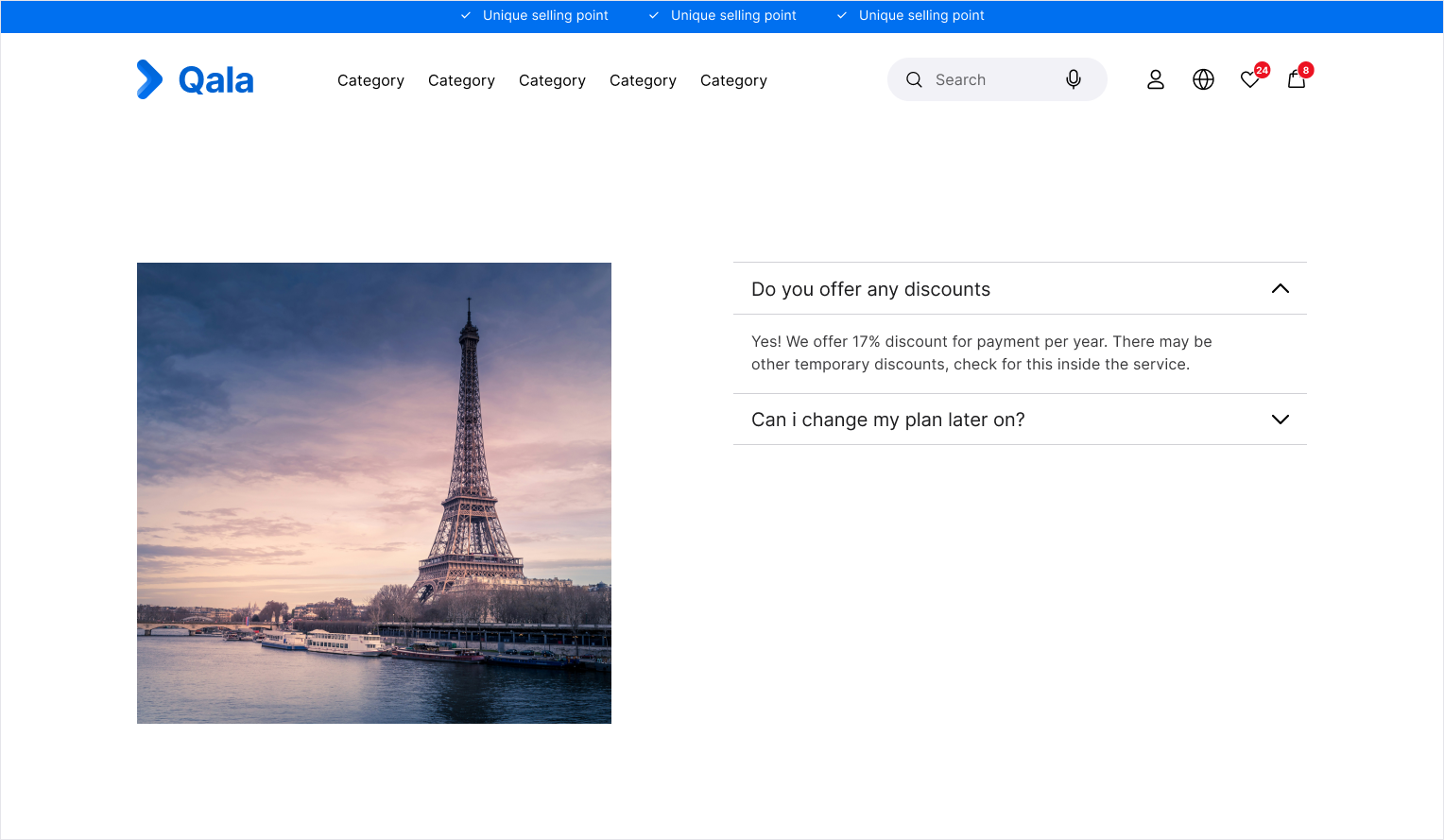
Multi image Accordion