FAQ list
How to use the Qala block “FAQ list”
Start by adding your FAQs in the WordPress Admin FAQ section. For each FAQ you will need to add separate content. Press Add new, next to FAQ items.
Add the heading or the question as a title. Then add the content you want underneath. In this case it will be a paragraph and a button.
Next, you can assign a category to this FAQ on the right hand side.
Now we need to create a new page. Add a title on the top.
To add the Qala block, press the plus icon. Press Browse all.
You can either scroll down to the section with Qala blocks, or you can just write the name of the block in the search area. Choose “FAQ list”.
Your FAQ items will now appear.
The title will be an H3 in your primary 500 color, and the content will be what you created before.
To the right, you will see your settings. If they are hidden, you can press the icon next to Publish. Make sure you have the Block tab open, not Page.
In the settings, you can add a block title, and select the heading level. Underneath, you can change the layout – if you want two columns or just the one. In that case, the content will toggle beneath the question.
Maybe you want to select specific FAQ items for this page. You can make those selections here.
Select how many items you want to display. And when you are done, make sure to save draft or publish!
If you add more FAQ items, they will automatically be added to your page, within the number of FAQ items you decided to display.
Summary
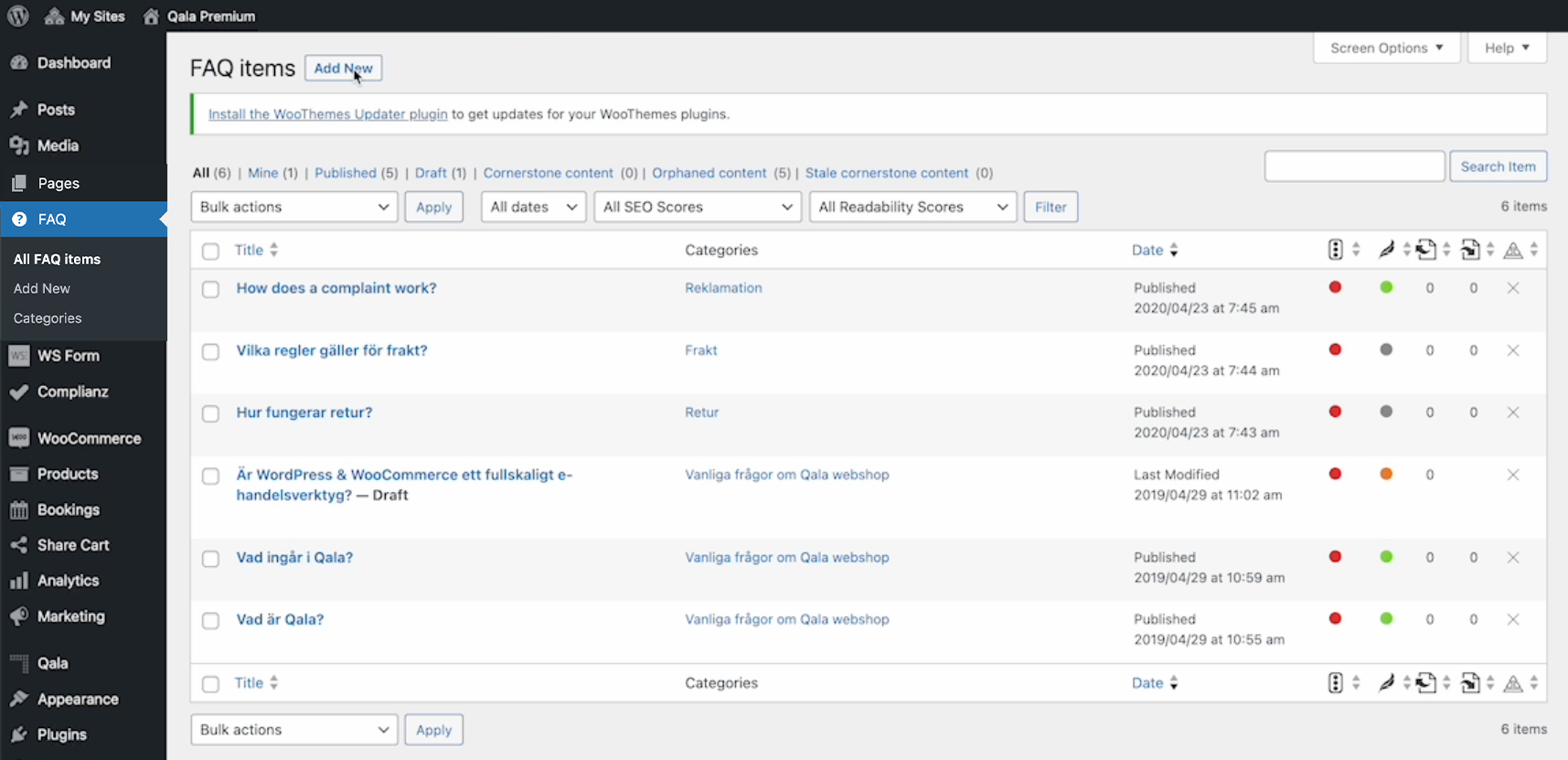
Fill out your FAQs in the WP Admin section FAQ
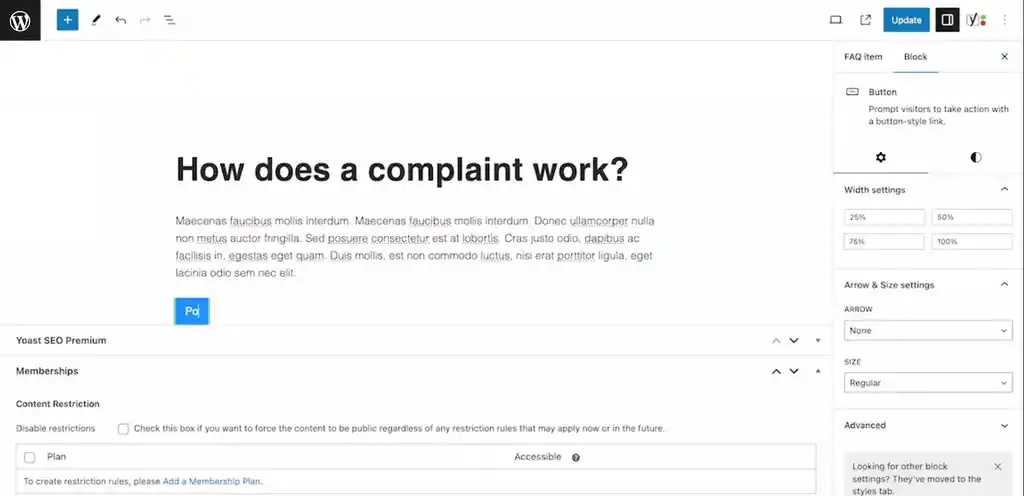
Add title and content for FAQ item
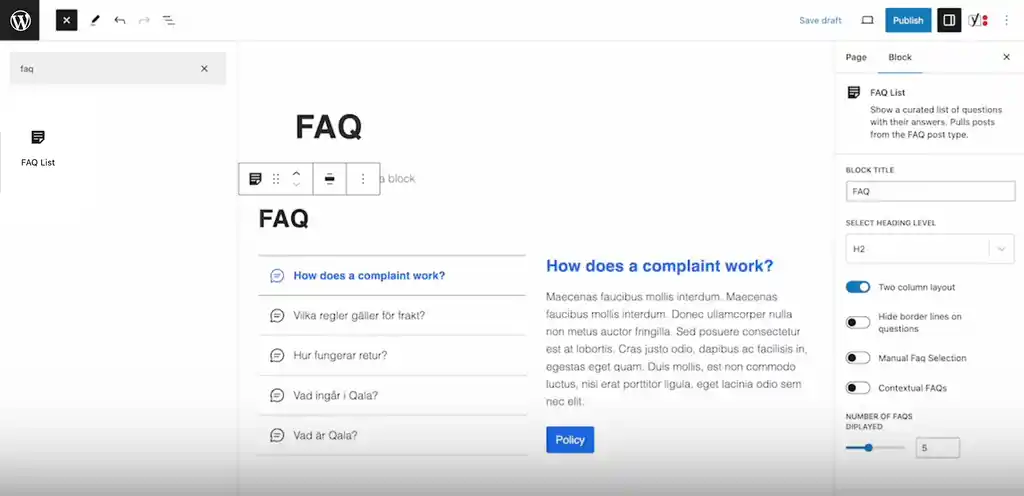
Find the Qala block FAQ list and add to page
Related Qala blocks
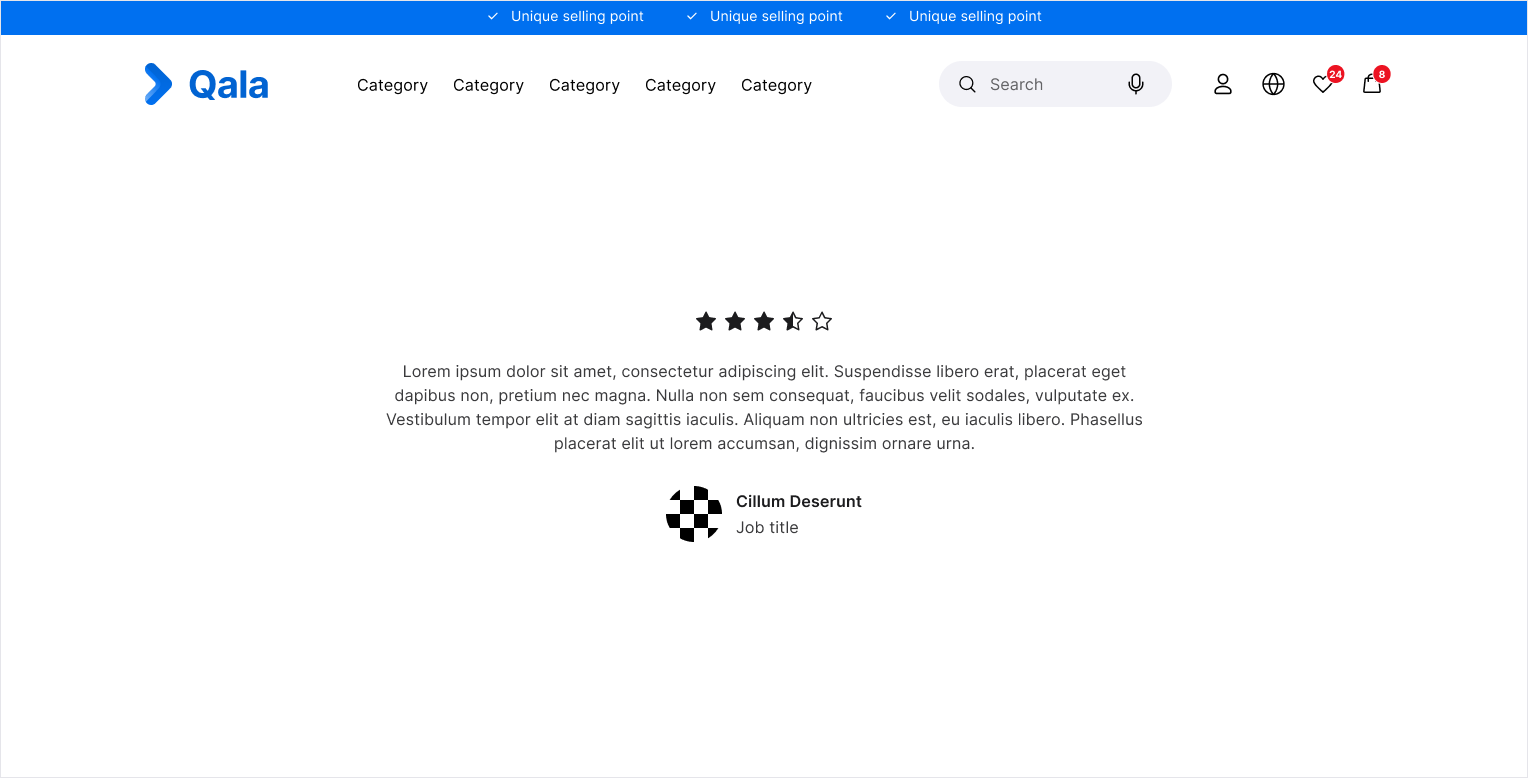
Single testimonial
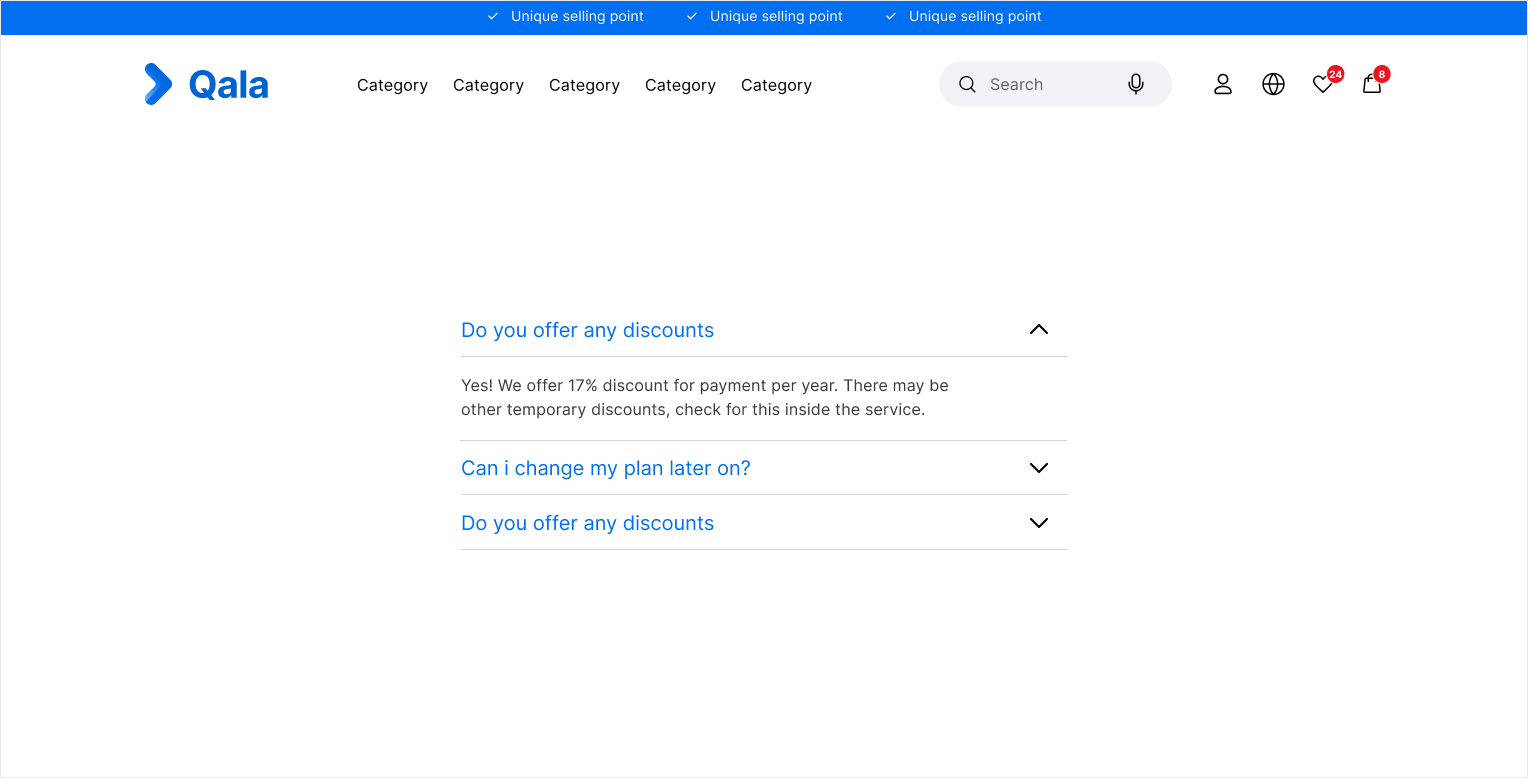
Accordion
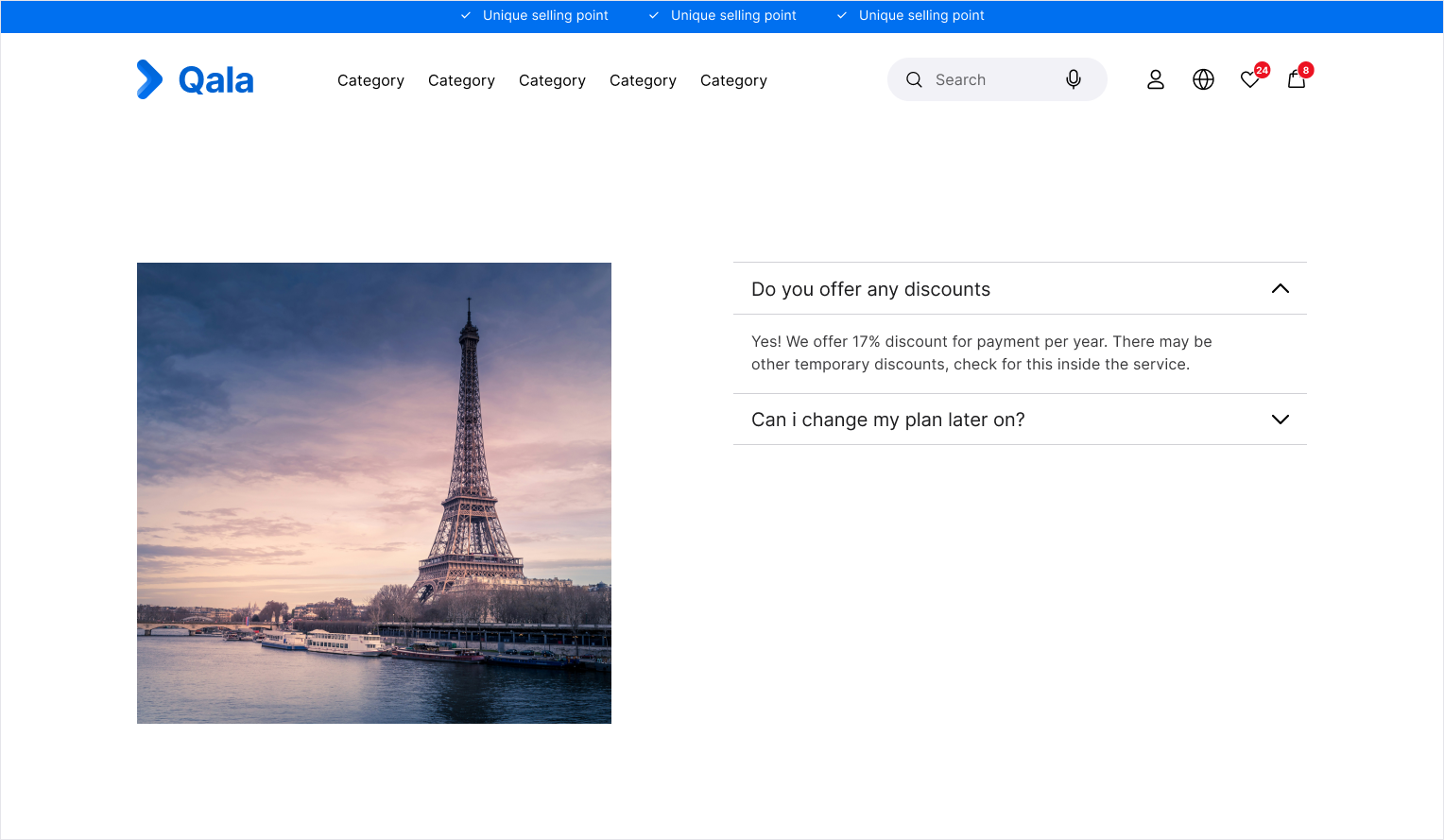
Multi image Accordion