Qala comes with different block patterns, think of it as a pre-made group of blocks in a designed layout. They can contain pretty much any design element you want. Elements like columns, images, videos, text, buttons – they can all be placed in a custom block pattern.
A block pattern can be used over and over again throughout your website. Each instance can be customized with appropriate content. Additionally, you can add, subtract, or otherwise edit the included blocks. Block patterns are usually not related or linked, so if you insert a block pattern on one page and edit it, the changes will not affect other pages where you have used the block pattern.
They offer a good starting point for building out a page and allow you to create a more consistent look.
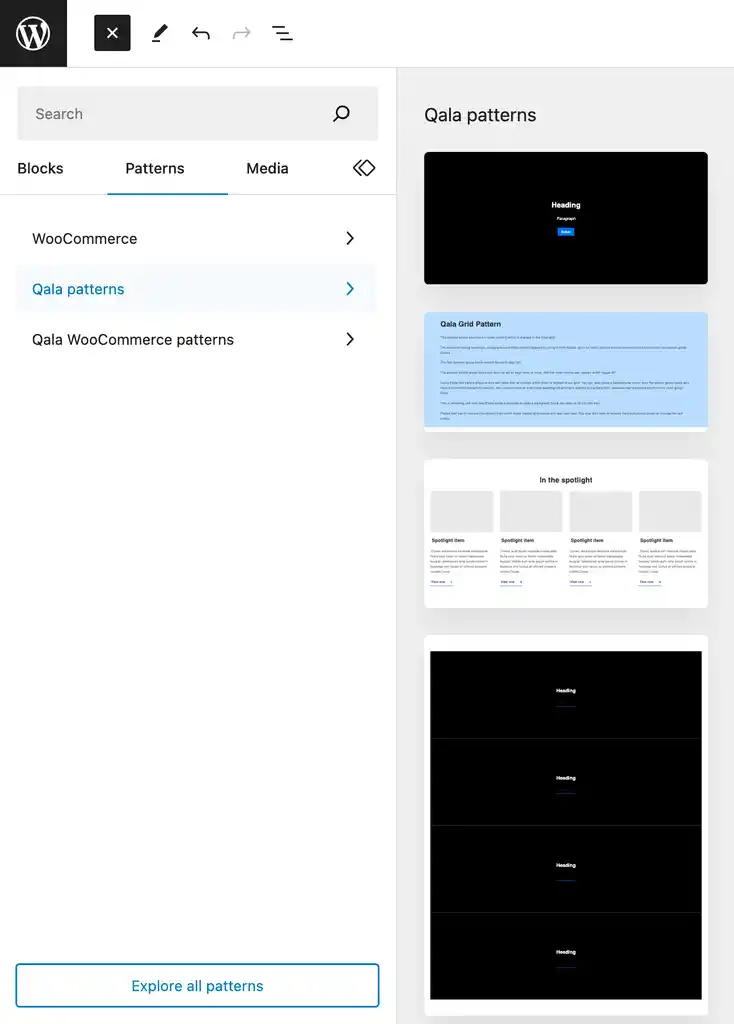
“Cover with content”

“Spotlights”

“Square grid”

“Text and context”

“Text and Image”

These are the pre-installed block patterns for Qala. You can customise it to your own brand and if you feel like you want a new type of pattern, let us know and we’ll help you out!
Bonus tips for using Gutenberg as one pro
The block editor is incredibly fast and even very basic use for a few minutes will allow you to instantly add blocks without even thinking.
Pretty soon you’ll realize how much faster your workflow will be with this approach.
For advanced users, here are some bonus tips to help you work even faster with the WordPress block editor.
Move the block toolbar to the top.
You may have noticed in the screenshots above that there is a toolbar that appears on top of each block. You can move this toolbar to the top of the editor.
Just click on the three dots button at the top right corner of the screen and then select the Top Toolbar option.

Use keyboard shortcuts
Gutenberg comes with several handy shortcuts that will make your workflow even better. The first one you should start using right away is /.
Just type / and then start typing, and it will show you matching blocks that you can immediately add.
For more shortcuts, click the three-dot menu in the upper-right corner of the screen, then select “Shortcuts.”

This will bring up a popup with a list of all the keyboard shortcuts you can use. The list will have different shortcuts for Windows and Mac users.
Drag and drop media to automatically create media blocks
Gutenberg lets you just drag and drop files anywhere on the screen and it automatically creates a block for you.
You can drop a single image or video file and it will create the block for you. You can also drop multiple image files to create a gallery block.
Adding YouTube, Twitter, Vimeo and other embeds
The block editor makes it easier to embed third-party content into your WordPress content. There are blocks for all popular third-party services.
However, you can just copy and paste the embedded URL at any time and it will automatically create a block for you.
For example, if you added a URL for a YouTube video, it will automatically create a YouTube embed block and display the video.

And that’s the basics of Gutenberg, everything you need to know to create beautiful and valuable content for your audience. If you still want to know more about Gutenberg, you can find even more at WordPress Gutenberg.